# Timeline
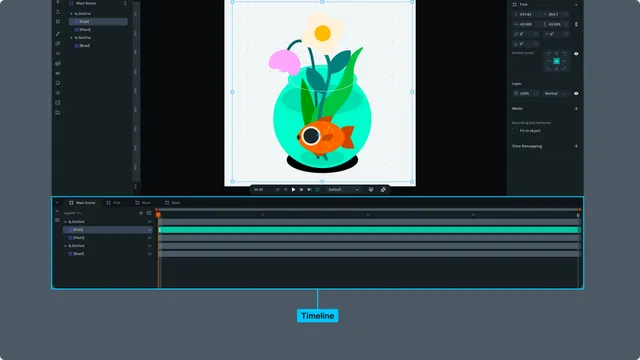 The Timeline is the control center for your animations in Lottie Creator. It displays your layers, keyframes, and provides tools for controlling playback and timing.
## Timeline Interface
The Timeline is located at the bottom of the Lottie Creator interface and consists of several key areas:
### Layout Structure
```
┌─────────────┬─────────────────────────────────────────────┐
│ │ Time Scale (seconds) │
│ Layer ├─────────────────────────────────────────────┤
│ Sidebar │ │
│ │ Keyframe Panel │
│ (36px) │ (Layer rows with keyframes) │
│ │ │
└─────────────┴─────────────────────────────────────────────┘
```
### Timeline Components
**1. Layer Sidebar (Left)**
The Timeline is the control center for your animations in Lottie Creator. It displays your layers, keyframes, and provides tools for controlling playback and timing.
## Timeline Interface
The Timeline is located at the bottom of the Lottie Creator interface and consists of several key areas:
### Layout Structure
```
┌─────────────┬─────────────────────────────────────────────┐
│ │ Time Scale (seconds) │
│ Layer ├─────────────────────────────────────────────┤
│ Sidebar │ │
│ │ Keyframe Panel │
│ (36px) │ (Layer rows with keyframes) │
│ │ │
└─────────────┴─────────────────────────────────────────────┘
```
### Timeline Components
**1. Layer Sidebar (Left)**
Scene management controls
Segment controls
Layer visibility toggles
Lock/unlock layer controls
**2. Layer Panel (Center-Left)**
Layer names and hierarchy
Expandable/collapsible layer tree
Property tracks nested under layers
Tree lines showing parent-child relationships
Toggle between "Source" and "Layers" view
**3. Time Scale (Top)**
Slider allows zooming and traversing the timeline
Shows seconds with frame subdivisions
Dynamic tick marks based on zoom level
**4. Keyframe Panel (Center-Right)**
Visual representation of keyframes as diamonds
Orange playhead (scrubber) indicator
Draggable keyframes
## Playhead and Scrubbing
The playhead (also called scrubber) is the orange vertical line indicating the current frame.
### Using the Playhead
**Move Playhead:**
**Click** on time scale to jump to that frame
**Drag** the orange playhead handle
**Keyboard shortcuts** for precise navigation:
`Home` - Jump to first frame (0)
`End` - Jump to last frame
`Page Down` - Next frame
`Page Up` - Previous frame
`Shift + Page Down` - Forward 10 frames
`Shift + Page Up` - Back 10 frames
**Scrubbing Features:**
**Shift + Drag playhead** - Snaps to visible keyframes
**Frame number display** - Shows current frame while dragging
**Frame width highlighting** - Visual feedback when zoomed in
### Jump to Keyframes
Navigate between keyframes efficiently:
**Shortcuts:**
**J** - Jump to previous keyframe
**L** - Jump to next keyframe
Works across all layers and properties, finding the nearest keyframe in either direction.
## Playback Controls
Control animation playback directly from the timeline or preview panel.
### Play/Pause
**Toggle Playback:**
Press **Space** to play/pause
Click play button in preview controls
**Playback Behavior:**
Plays from current playhead position
Respects work area boundaries (loops within work area)
Maintains consistent frame rate (default 30 FPS)
Automatically pauses at end (unless looping)
### Loop Mode
**Enable Looping:**
Toggle loop button in preview controls
When enabled, playback returns to work area start upon reaching end
Works with both full timeline and work area ranges
## Work Area
The work area defines a specific range of your timeline for focused playback and export.
### Setting Work Area
**Visual Indicator:**
Adjustable start and end sliders
Drag sliders to set range
**Keyboard Shortcuts:**
`Cmd/Ctrl + Opt/Alt + [` - Set work area start to playhead
`Cmd/Ctrl + Opt/Alt + ]` - Set work area end to playhead
**Manual Setting:**
**Alt + Drag** on time scale to shift work area
Drag start/end handles to adjust
### Work Area Operations
**Context Menu Options:**
Right-click on work area for operations:
**Set as Segment** - Save range as named segment
**Trim Scene to Work Area** - Cut timeline to work area range
**Reset Work Area** - Remove work area limits
**Using Work Area:**
Limits playback to specified range
Useful for previewing specific sections
Can create multiple segments from different work areas
## Timeline Zoom and Pan
Control timeline visibility to work efficiently at different scales.
### Zooming the Timeline
Zoom in to fine-tune keyframe spacing, or zoom out for a full view of your animation's timing.
**Methods:**
`Cmd/Ctrl + +` — Zoom in (more detail, fewer frames visible)
`Cmd/Ctrl + -` — Zoom out (less detail, more frames visible)
**Scroll wheel** while hovering over the time scale — zoom centered on cursor position
**Pinch gesture** on trackpad — zoom in and out
**Drag the zoom slider** on the time scale — drag the ends of the slider to zoom, drag the middle to pan
**Zoom behavior:**
Zooming is centered around the current playhead position, so your point of focus stays in view as you zoom in or out.
### Panning the Timeline
**Horizontal Scrolling:**
Drag the scrollbar below the keyframe panel
Two-finger swipe horizontally on trackpad
**Middle-click + drag** on the keyframe panel
Drag the middle of the zoom slider on the time scale
## Layer Rows and Hierarchy
The timeline displays layers in hierarchical rows.
### Layer Display
**Hierarchy Visualization:**
**Tree lines** connect parent and child layers
**Indentation** shows nesting level
**Expand/collapse** to show/hide child layers and properties
**Expanding Layers:**
**Click arrow** next to layer name
**Arrow keys** to expand/collapse selected layer
Reveals property tracks (Position, Scale, Rotation, etc.)
### Property Tracks
When layers are expanded, property tracks appear nested underneath:
**Property Track Display:**
Each animated property gets its own row
Property name on left (e.g., "Position", "Opacity")
Only animated properties shown by default
Expand/collapse properties individually
## Frames
**Frame Duration:**
Calculated as `1000 / fps` milliseconds
Affects playback timing precision
Doesn't change timeline display (always shows seconds)
### Scene Controls
The header tabs allow scene navigation.
Shows active scene name
Click to open scene selector
Switch between scenes quickly
### Segment Management
**Segments:**
Named ranges of your timeline
Create from work area
Quick access to specific animation sections
### Layer Row Context Menu
**Layer Operations:**
Show/hide layer
Lock/unlock layer
Rename layer
Delete layer
### Preview
**Quick Preview:**
Set work area around section of interest
Enable loop for repeated viewing
Adjust playback speed as needed
**Full Animation:**
Reset work area for full timeline playback
Verify overall timing and flow
Check transitions between sections