Interactivity & State Machines
Build interactive animations without code by using dotLottie state machines in Lottie Creator.
Check out the YouTube tutorial series for State Machines here:
🧠 What’s a state machine?
A state machine is a way to describe how something changes over time based on certain conditions.
It’s like a flowchart: “If this happens → go there.”
Instead of one long animation that always plays the same way, a state machine lets you break it up into pieces (called "states") and control how and when they change.
🎮 Example 1: A Button
Let’s say you have an animated button.
State 1: Normal
State 2: Hover
State 3: Pressed
With a state machine, you can say:
If the mouse enters → switch to Hover state
If the user clicks → switch to Pressed state
If they release the click → go back to Hover
If they move the mouse away → go back to Normal
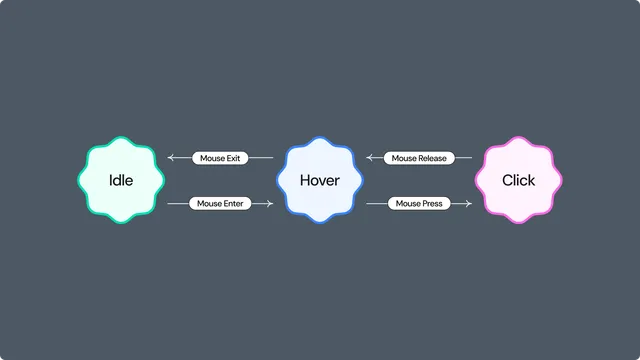
So now the button feels interactive — not just animated.
🚦 Example 2: A Traffic Light
State 1: Green
State 2: Yellow
State 3: Red
The rules might be:
Wait 4 seconds → switch to Yellow
Wait 1 second → switch to Red
Wait 5 seconds → go back to Green
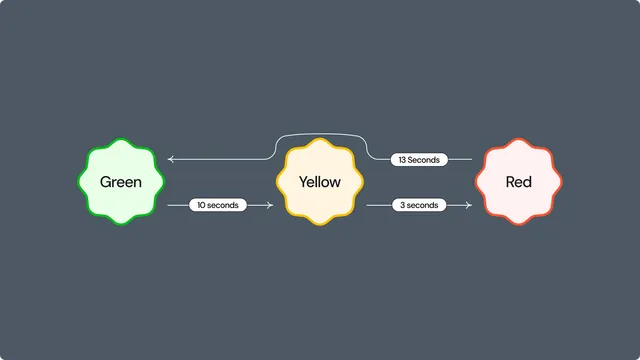
The light changes based on time — that’s an “input” to the machine.
🧩 Why it matters
With state machines in Lottie, you can:
React to clicks, hovers, or other user actions
Branch your animations based on conditions
Build things like UI prototypes, onboarding flows, or interactive stories — all without code
Instead of animations just playing, now they listen, respond, and feel alive.
User Interface
State Machines Mode can be accessed with a toggle near the top right of the screen. It contains a number of tools for creating and testing state machines.
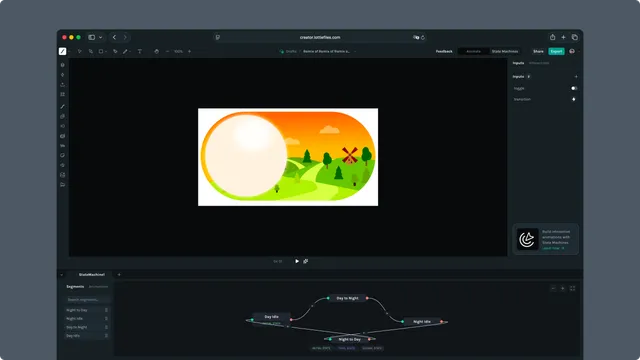
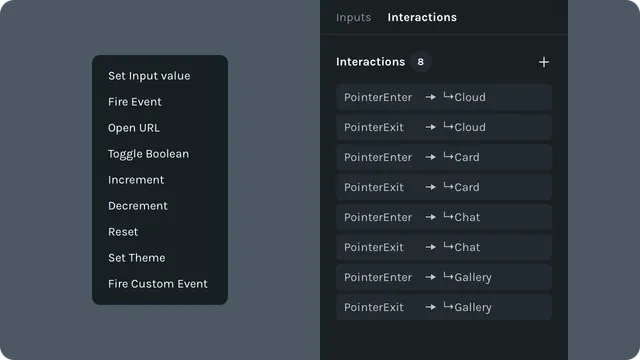
Inputs and Interactions can be created and managed in the right side panel.
States can be created and managed in the bottom left side panel. Drag and drop to create a state.
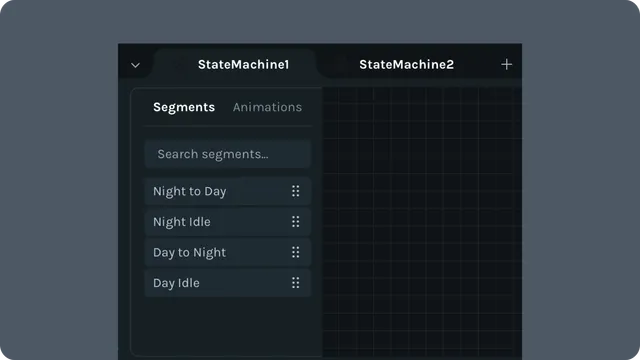
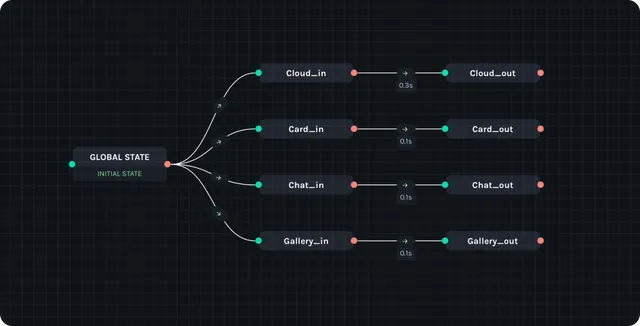
The Canvas is where state machines can be modeled visually.
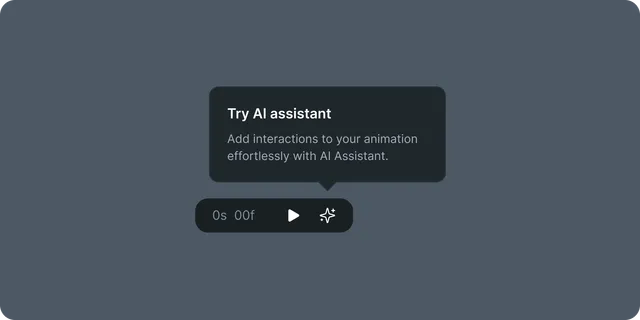
The Floating Panel can be used to play the state machine. It is also where Prompt to Sttate Machines, our state machine-creating AI, can be accessed.
How state machines work
- •States: Named playback configurations (timeline segments, speed, direction).
- •Inputs: Variables that store values (Boolean, Numeric, String, Event).
- •Transitions: Rules that move between states, optionally with guards and tweening.
- •Interactions: User events (click, hover) that trigger actions.
- •Actions: Operations that change inputs, control playback, or fire events.
State machines let you design hover effects, clickable UI, data-driven visuals, and multi-step flows directly in the editor.
Related articles
Applies to: Lottie Creator (Web), dotLottie state machines