Transform Properties
Transform properties determine how a layer appears in space—its position, rotation, scaling, skewing, and pivot point. These controls apply to all layer types unless otherwise noted.
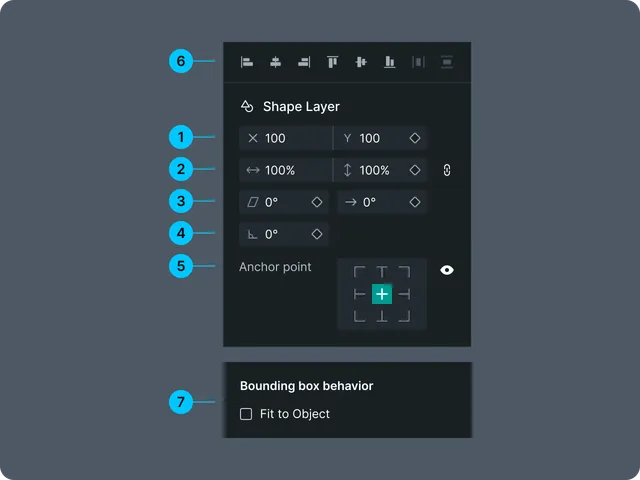
1. Position
Controls where the layer sits on the canvas.
- •X — horizontal position
- •Y — vertical position
Drag the object directly on canvas or enter precise values in the panel.
Tips
- •Hold Shift while dragging to constrain movement
- •Position can be animated with keyframes
2. Scale
Changes the size of the layer.
- •Scale X — horizontal scaling
- •Scale Y — vertical scaling
- •Link icon toggles uniform scaling
Notes
- •Negative scale values flip the layer
- •Scale is animatable
3. Skew (Supported & Animatable)
Applies a slant or shear effect.
- •Skew — angle of distortion
- •Skew Axis — direction of skewing
Useful for perspective-style motion graphics or slanted UI elements.
4. Rotation
Rotates the layer around its anchor point.
- •Specified in degrees
- •Supports multiple revolutions (e.g. 720°)
- •Fully animatable
5. Anchor Point
Defines the pivot used for rotation and scaling.
- •Anchor X / Y inside layer bounds
- •Does not move the layer visually—only changes rotation/scale center
Tip
Always set anchor before animating rotation.
6. Alignment Tools
Available when two or more layers are selected.
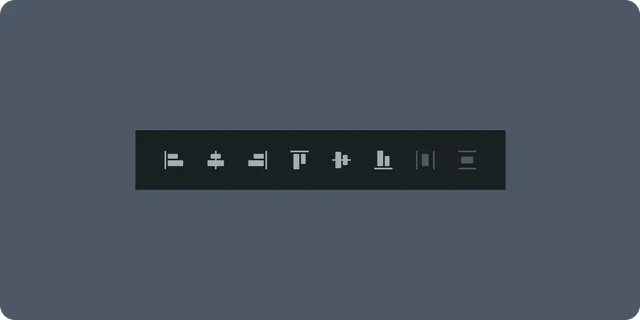
Horizontal Alignment
- •Align Left
- •Align Center
- •Align Right
Vertical Alignment
- •Align Top
- •Align Middle
- •Align Bottom
Alignment is always relative to the bounding box of the selection or the scene bounds depending on context. ## 7. Bounding Box Behavior (Layer Level)
The bounding box defines snapping, alignment, and transform behavior.
- •Vector layers use shape bounds
- •Images use pixel dimensions
- •Precomps use scene size or content bounds depending on mode
Changes automatically when shapes are added or removed.