Lottie Creator WebMCP
Use a browser-connected AI assistant to inspect your scene, edit layers, and create animations in Lottie Creator with natural language.
Use WebMCP to let an AI assistant work on the animation you have open in Lottie Creator. Describe what you want to create or change, review the result on the canvas, and refine it in the editor.
WebMCP is on by default in supported browsers. You do not need to install the local Creator MCP server to use it.
Before you start
WebMCP needs both browser support and an assistant that can discover and call the page's tools. Choose one of these setups:
ChatGPT desktop app's built-in browser: This is the setup used in this guide. Check the official site tools documentation for current model, workspace, and availability requirements.
Another browser and assistant integration: Use a browser with native WebMCP support, paired with an assistant integration that can discover and call its page tools. Check the tracker below for browser and agent compatibility and setup notes.
Support for ordinary MCP servers alone does not give an assistant access to WebMCP.
See the community-maintained WebMCP Ecosystem Tracker for current support and setup notes. Check both the browser and agent sections: a browser can support WebMCP even when its assistant does not. The tracker covers the wider ecosystem, not a list of integrations tested with Creator.
To check availability, open Settings → MCP Settings in Creator. A greyed-out Enable WebMCP option without Temporarily unavailable means native WebMCP is not available to Creator in this browser. If Temporarily unavailable appears, WebMCP is currently unavailable in Creator; reload Creator later to check again. For an unchecked option or a startup failure, see Troubleshooting.
Create and edit with ChatGPT
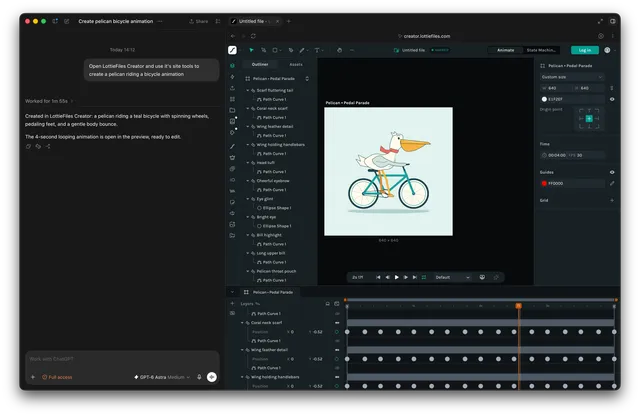
In the ChatGPT desktop app, open Lottie Creator in the built-in browser and create or open an animation.
Sign in there to access your saved files. The built-in browser has its own session, separate from your regular browser. See the ChatGPT browser guide for browser controls and site permissions.
Creator's WebMCP indicator means its tools are available in this tab.
Start with a question that does not change your animation:
Use the WebMCP site tools in my Creator tab to describe the current scene and selected layers. Don't change anything.
If you have several Creator tabs open, tell your assistant which one to use.
Select a layer in Creator and describe the result you want:
Give the selected layer a 400 ms fade-in with ease-out timing. Keep the other layers unchanged.
To start from an empty scene, describe what you want to create instead:
Create a pelican riding a bicycle, with spinning wheels and a gentle body bounce. Make it a four-second loop.
Preview the result in Creator, then ask for a refinement or adjust the layers and keyframes yourself.
Capabilities
Lottie Creator MCP, Motion Copilot, and Lottie Creator WebMCP offer the same Creator editing capabilities. Their setup and assistant interfaces differ.
| Area | What you can ask for |
| Scenes and layers | Inspect and create scenes; change size, frame rate, duration, or preview background; rename, duplicate, group, align, reorder, hide, or lock layers. |
| Shapes and text | Create and edit rectangles, ellipses, polygons, stars, paths, and text; change fonts and text styles; split text into parts for animation. |
| Styling and effects | Adjust solid and gradient fills or strokes; use blend modes, shadows, blur, color effects, masks, and mattes. |
| Animation and timing | Add, inspect, change, copy, or remove keyframes; adjust easing; animate transforms, opacity, and color; use motion paths, staggered entrances, and retiming. |
| Assets and scene inspection | Import SVGs, Lottie animations, and images; convert PNG or JPG image layers to vectors; inspect the scene and move the playhead to a specific frame. |
| Themes and reusable motion | Create and link motion-token slots, update their values, and create or switch themes. Find and apply saved styles and motion presets from your workspace's Motion System. |
| Segments and interactivity | Create named animation segments, state machines, states, transitions, and inputs; connect click, hover, and state events to actions. |
Feature access follows your Creator workspace and plan. When the animation is ready, use Creator's export controls to save the result.
Simple questions can use direct read tools. For multi-step edits, the assistant uses CodeMode to combine available operations in a short script. You can give instructions in natural language; you do not need to write the script yourself.
More ways to use WebMCP
Create a complete animation
Start with an empty scene and describe the subject, movement, and duration. Your assistant can create the artwork and its animation together:
Create a pelican riding a bicycle, with spinning wheels and a gentle body bounce. Make it a four-second loop.
Preview the result in Creator, then refine individual details, such as the wheel speed or the pelican's movement.
Animate existing artwork
Import your SVG into Creator, then ask your assistant to add motion to its layers:
Animate the
medalgroup with a 600 ms bounce-in. Keep the artwork, colors, and final position unchanged.
Create color variants
Use motion-token slots and themes to reuse the same animation with different colors:
Link the button and heading colors to motion tokens. Add a dark theme with a navy button and white heading, while preserving the current colors in the default theme.
Retime a sequence
Describe the overall timing and the order of the elements:
Make the three label entrances last 400 ms each, with an 80 ms stagger from left to right. Keep their final positions unchanged.
Understand a complex scene
Ask for an inspection before changing unfamiliar artwork:
Explain how this scene is organized. Identify hidden or off-canvas layers and summarize the existing animation timing. Don't change anything.
Best practices
Name the layers you want to change. Names such as
heading,left_arm, orbackgroundmake requests easier to target. Specify what should stay unchanged.Start from existing artwork when its appearance matters. Import your illustrations into Creator and ask for motion changes to preserve their visual style.
Specify timing and feel. Include duration, delay, direction, and easing: “a 400 ms fade-in with ease-out” gives a clearer target than “make it smooth.”
Build complex animations in steps. Establish the scene and layout, add motion, then refine timing or interactivity. Preview each stage in Creator before continuing.
Inspect before repeating a failed request. Earlier edits can remain after a failure or timeout. Ask the assistant to read the current scene and continue from what is already there.
Optional motion design guidance
The LottieFiles motion design skill provides reusable guidance for timing, easing, choreography, and motion style. It can help an assistant plan how an animation should feel; it does not add Creator tools or enable the WebMCP connection.
If your assistant supports installing skills, follow the skill's installation instructions for that assistant. Skill installation is separate from using site tools in ChatGPT's built-in browser, and is not required for this guide. You can also read the guidance yourself and include the timing, style, or sequence you want in your prompts.
Turn WebMCP on or off
Open Settings → MCP Settings and change Enable WebMCP.
Creator saves your choice for this browser profile across new tabs and browser restarts. Clearing site data resets it. Reload another already-open Creator tab to apply the saved choice there.
Troubleshooting
Enable WebMCP is disabled: If there is no Temporarily unavailable label, check that your browser supports native WebMCP and that you have followed its setup requirements.
Creator shows “Temporarily unavailable”: WebMCP is currently unavailable in Creator. You cannot turn it on from MCP Settings while this message is shown. Reload Creator later to check availability again.
Your assistant cannot find the tools: Check that it is using the correct Creator tab and that its browser integration meets the requirements above. If Enable WebMCP is unchecked and available in MCP Settings, select it to restore access.
MCP Settings shows “Could not start”: Choose Retry WebMCP in the same menu. This retries starting WebMCP; it does not retry an animation request.
Your assistant reports that CodeMode is busy: Wait for an active request to finish, then ask the assistant to retry.
Your assistant reports a timeout: Inspect your animation, then ask the assistant to continue with a smaller task.
A failed, cancelled, or timed-out request can leave earlier edits in place. Check what changed before asking the assistant to repeat the request.
Other ways to connect
Coding agents can also access page tools through Chrome DevTools MCP. Follow its official configuration guide for experimental WebMCP setup.
If your assistant uses Creator's local bridge, follow the Lottie Creator MCP guide. That connection uses Enable local MCP, which is separate from WebMCP.
A connected external assistant can read animation content and make changes through Creator's tools. Review your assistant provider's data settings and policies before using it with sensitive work.