Motion Presets
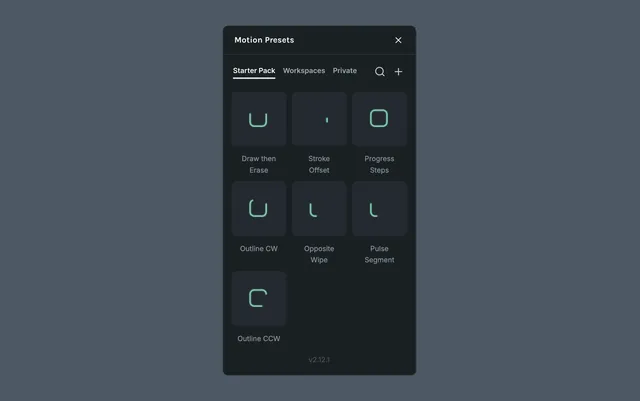
Motion Presets is a library of ready-to-apply animations you can drop onto any layer. Use it to animate static designs quickly or as a starting point you can refine in the timeline.
What it helps you do
- •Animate a static design in seconds without authoring keyframes
- •Apply consistent enter, highlight, and exit motion across a project
- •Save your own animations for reuse and share them with your team
The preset library
Presets are grouped by category (what the animation does) and pulled from three sources (where the preset lives).
Categories
- •In — animate elements into the frame (fade in, slide in, scale in)
- •Highlight — draw attention to layers already on screen (pulse, shake, bounce)
- •Out — animate elements out of the frame (fade out, slide out, scale out)
Sources
- •Starter pack — built-in presets that ship with Lottie Creator
- •Your private presets — animations you've saved for your own reuse, visible only to you
- •Workspace presets — presets shared by anyone in your workspace, available to the whole team
Apply a preset
Select one or more layers on the canvas
Click the Motion Presets icon in the left sidebar
Browse by category or hover a preset to preview it
Click the preset to apply it to the selected layers
Refine the generated keyframes in the timeline as needed
Save a custom preset
After building an animation you want to reuse, save it as a custom preset. Keep it private for your own use, or share it with your workspace so the rest of your team can apply the same motion across projects.
Last updated: October 8, 2026 at 10:45 AMEdit this page