Animation
This guide provides an overview of how to easily create and refine animations in Creator. The workflow is organized into Basic and Advanced sections, helping you apply motion design step by step.
Basic workflow
Create your design using drawing tools and shapes
Position the playhead at the start of your animation
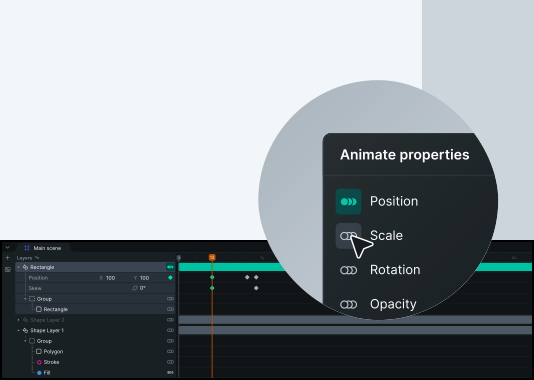
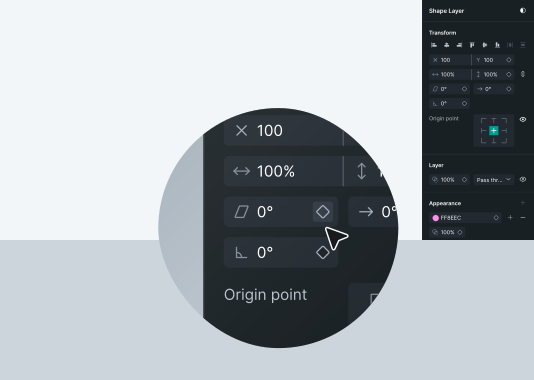
Enable animation by toggling the Animate switch in the Timeline, or by clicking the keyframe icon next to the property you want to animate in the Property Panel
Move the playhead to a new time
Change property values to create new keyframes automatically
Adjust easing between keyframes for smooth motion
Preview and refine your animation
Key Concepts
- •
Keyframes : Markers in time that define property values. The animation smoothly interpolates between keyframes.
- •Timeline : Visual representation of your animation showing layers, keyframes, and time.
- •
Properties : Attributes like position, scale, rotation, and opacity that can change over time.
- •
Easing : Controls how values change between keyframes. Linear easing creates constant speed, while bezier curves create acceleration and deceleration.