Shape Tools
Lottie Creator provides four shape tools for quickly creating geometric shapes: Rectangle, Ellipse, Polygon, and Star. These tools create vector shapes that can be animated, styled, and modified.
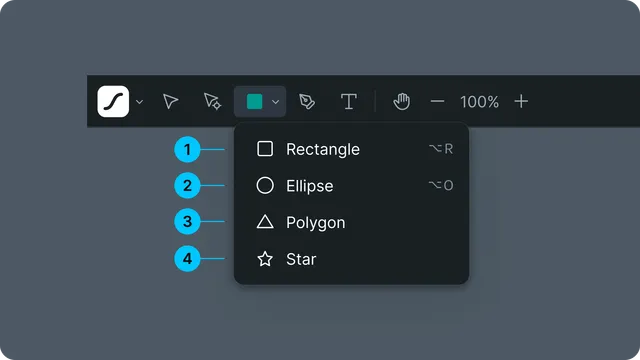
Rectangle Tool (Alt+R) - Create squares and rectangles with optional rounded corners
Ellipse Tool (Alt+O) - Create circles and ellipses
Polygon Tool - Create regular polygons with customizable point count
Star Tool - Create stars with adjustable points and inner radius
1. Rectangle Tool
Create rectangles and squares with optional rounded corners.
Activating Rectangle Tool
- •Press Alt+R (or Option+R on Mac)
- •Click the rectangle icon in left sidebar
- •Or select from tool menu
Creating Rectangles
Basic Rectangle:
Select Rectangle Tool
Click and drag on canvas
Release to create rectangle
Perfect Square:
- •Hold Shift while dragging
- •Creates 1:1 aspect ratio
- •Size determined by drag distance
Fit to Scene:
- •Hold Option/Alt and click (without dragging) to draw a shape fitted to the scene
Combined Modifiers:
- •Shift + Alt - Perfect square from center
Rectangle Properties
After creating a rectangle, adjust properties in the right sidebar:
Size:
- •Width - Horizontal dimension (px)
- •Height - Vertical dimension (px)
- •Link icon to maintain aspect ratio
Corner Radius:
- •Roundness - Radius of rounded corners (0 = sharp corners)
- •Set all corners together or individually
- •Maximum roundness creates pill/capsule shape
- •Animatable property
Position & Transform:
- •Position, scale, rotation (see Transform Properties)
- •All standard transform controls available
Appearance:
- •Fill color (solid or gradient)
- •Stroke (outline with width, color, opacity, dashes)
2. Ellipse Tool
Create circles and ellipses for organic shapes.
Activating Ellipse Tool
- •Press Alt+O (or Option+O on Mac)
- •Click the ellipse/circle icon in left sidebar
- •Or select from tool menu
Creating Ellipses
Basic Ellipse:
Select Ellipse Tool
Click and drag on canvas
Release to create ellipse
Perfect Circle:
- •Hold Shift while dragging
- •Creates equal width and height
- •Size determined by drag distance
Ellipse Properties
Size:
- •Width - Horizontal diameter (px)
- •Height - Vertical diameter (px)
- •Link icon to maintain circular shape
Position & Transform:
- •Position, scale, rotation
- •Rotation affects gradient direction if applied
Appearance:
- •Fill color (solid or gradient)
- •Stroke (outline)
- •All standard appearance properties
3. Polygon Tool
Create regular polygons with any number of sides.
Activating Polygon Tool
- •Click the polygon icon in left sidebar
- •Or select from tool menu
- •No default keyboard shortcut (can assign in preferences)
Creating Polygons
Basic Polygon:
Select Polygon Tool
Click and drag on canvas
Release to create polygon
Regular Shape:
- •Polygons are always regular (equal sides and angles)
- •Drag distance determines size
- •Hold Shift to constrain orientation
Polygon Properties
Points:
- •Point Count - Number of sides (3 to 100+)
- •3 = Triangle
- •4 = Diamond
- •5 = Pentagon
- •6 = Hexagon
- •8 = Octagon
- •And so on...
Size:
- •Outer Radius - Distance from center to points
- •Inner Radius - Not applicable for regular polygons
Rotation:
- •Rotate to change orientation
- •Points can face up, down, or any direction
Appearance:
- •Fill and stroke like other shapes
- •All appearance properties available
4. Star Tool
Create stars with customizable points and inner radius.
Activating Star Tool
- •Click the star icon in left sidebar
- •Or select from tool menu
- •No default keyboard shortcut (can assign in preferences)
Creating Stars
Basic Star:
Select Star Tool
Click and drag on canvas
Release to create star
Constrained Star:
- •Hold Shift while dragging
- •One point faces directly up
- •Useful for consistent orientation
Star Properties
Points:
- •Point Count - Number of points (3 to 100+)
Radii:
- •Outer Radius - Distance to outer points
- •Inner Radius - Distance to inner points (between outer points)
- •
Ratio - Inner/outer radius ratio
- •Small ratio = sharp, thin points
- •Large ratio = blunt, thick points
Rotation:
- •Rotate to change orientation
- •Typically one point faces up
Appearance:
- •Fill and stroke properties
- •Gradients work well with stars
- •All appearance options available
Common Shape Tool Features
Default Appearance
All new shapes start with:
- •Fill: Default color (from last used or theme)
- •Stroke: Usually none (can be enabled)
- •Opacity: 100%
Customize in property panel after creation.
Editing After Creation
Resize:
- •Use Selection Tool (V)
- •Drag corner handles
- •Shift+drag for proportional scaling
Reposition:
- •Drag with Selection Tool
- •Or use Position property in panel
Modify Properties:
- •Adjust specific shape properties (corner radius, points, etc.)
- •Change appearance (fill, stroke)
- •All editable in property panel
Converting Between Shapes
Path Conversion: Shapes can be converted to editable paths:
Select shape
Right-click → Convert to Path or click on "Convert to Path" in the property panelConvert to Path" in the property panel
Shape becomes bezier path
Edit with Pen Tool or Path Editing Tool
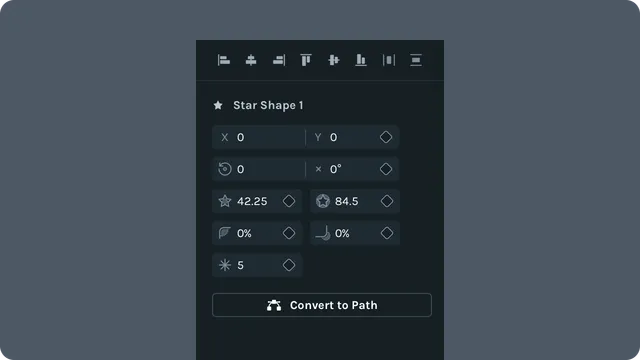
Note: Converting to path loses parametric properties (can't adjust corner radius, point count, etc. after conversion).
Animating Shapes
Animatable Properties
All Shapes:
- •Position, Scale, Rotation, Opacity
- •Fill color, Stroke color
- •Stroke width
Rectangle Specific:
- •Corner radius (animate rounding)
- •Width, Height (separately)
Polygon/Star Specific:
- •Point count (smooth morphing between shapes)
- •Outer radius, Inner radius (stars)
Keyboard Shortcuts
Shape tool shortcuts:
Tools:
- •Alt+R (Option+R) - Rectangle Tool
- •Alt+O (Option+O) - Ellipse Tool
Modifiers:
- •Shift + Drag - Constrain proportions
- •Alt/Option + Drag - Draw from center
- •Alt/Option + Click - Draw a shape fitted to the scene
- •Shift + Alt + Drag - Both modifiers
After Creation:
- •V - Switch to Selection Tool
- •Enter - Edit shape properties
- •Delete - Remove shape