Path Editing
Path editing lets you refine paths created with the Pen tool or converted from shapes. This page covers path vertices and how they are used to change the shape of a path.
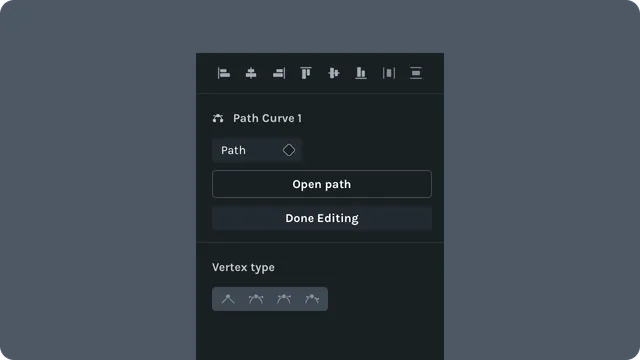
Enter path editing
You can edit a path by double clicking a selected path and choosing Edit Path. When path editing is active, path vertices and bezier handles become visible.
Vertices
Vertices are points on a path that connect segments and control where curves can change direction. They have control handles that determine the Bezier curve of the connected lines.
Vertex types:
- •Sharp: straight corner with no curve
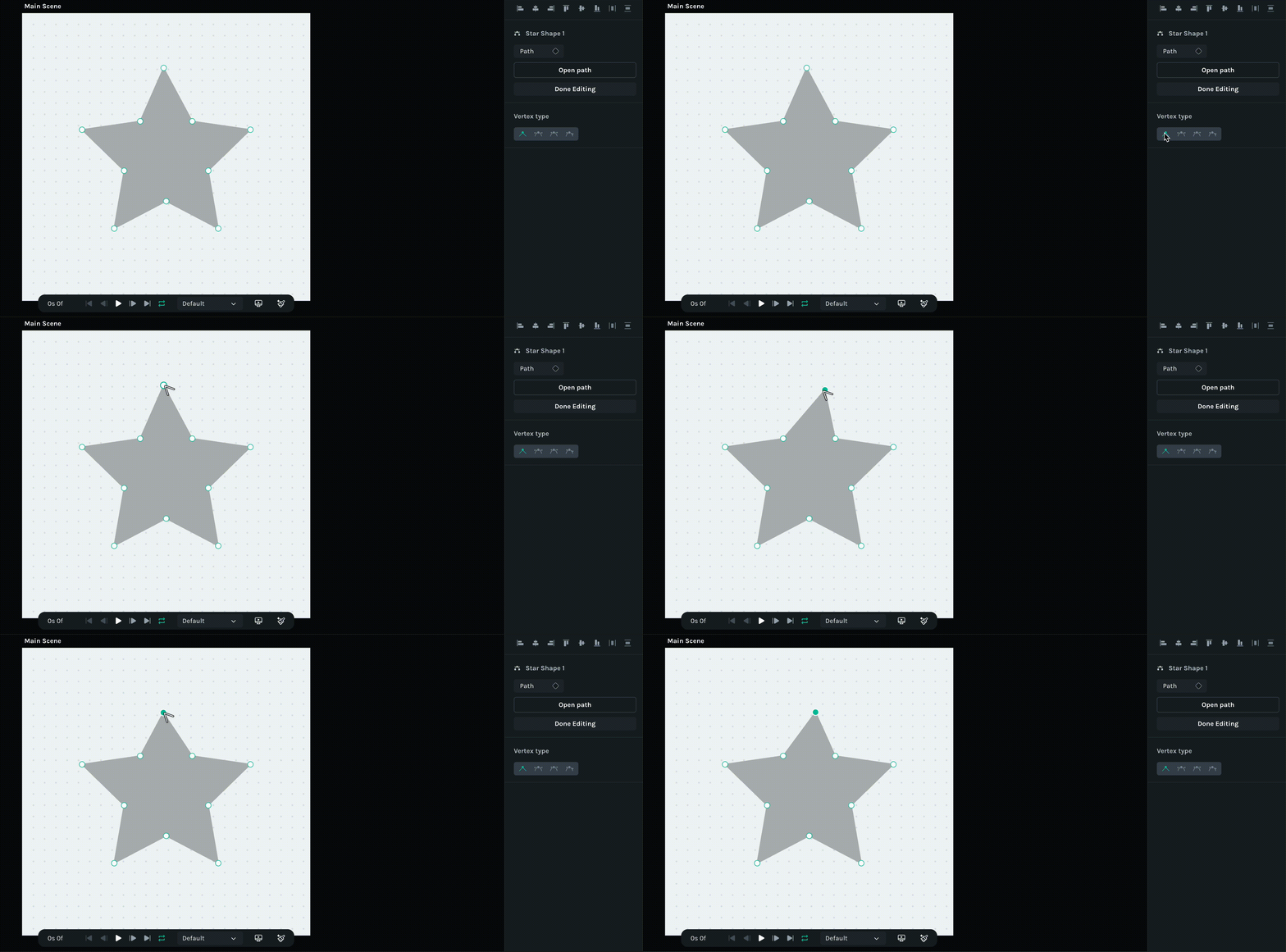
- •Curve: smooth curve with connected handles
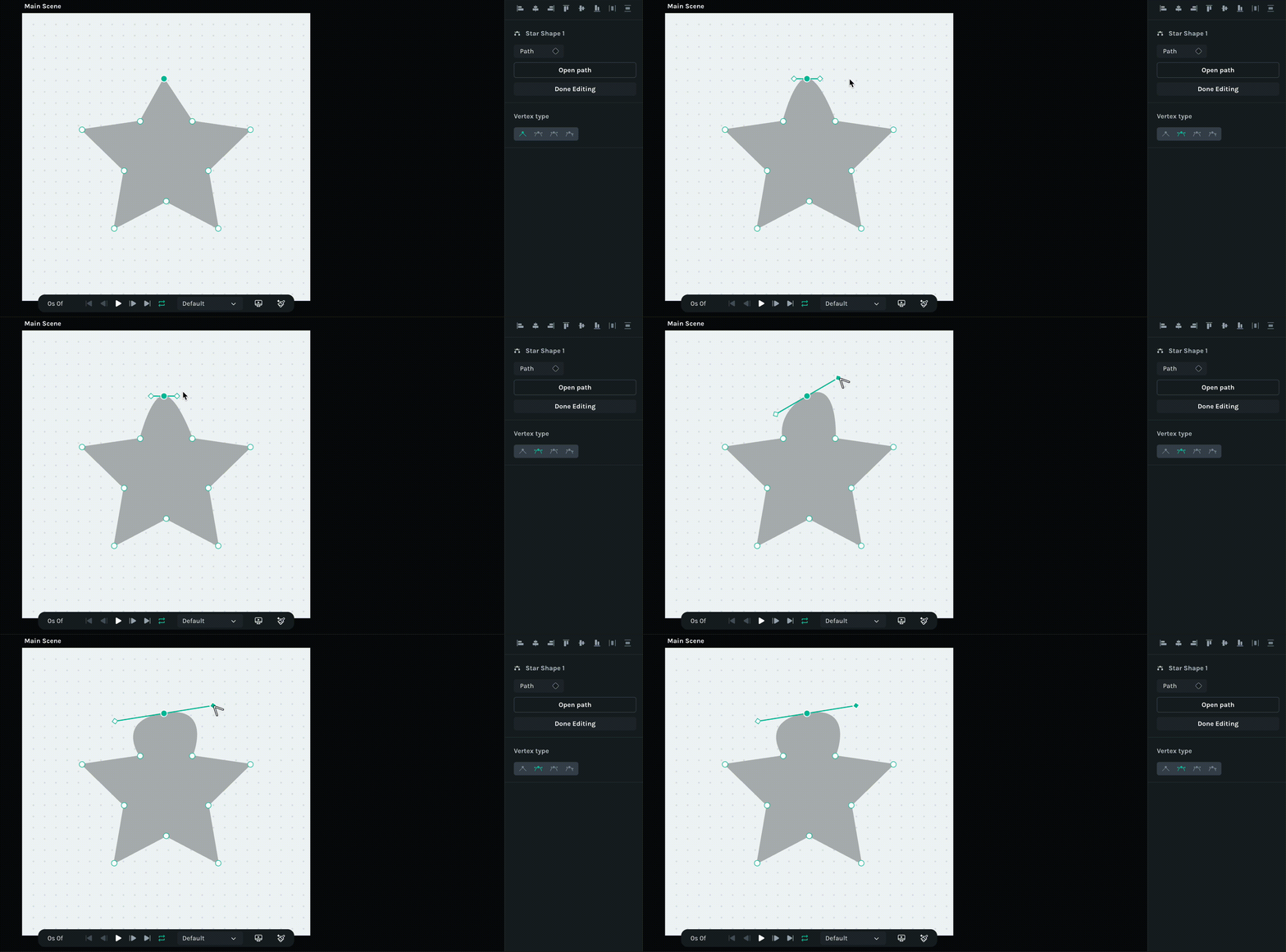
- •Disconnected: handles move independently
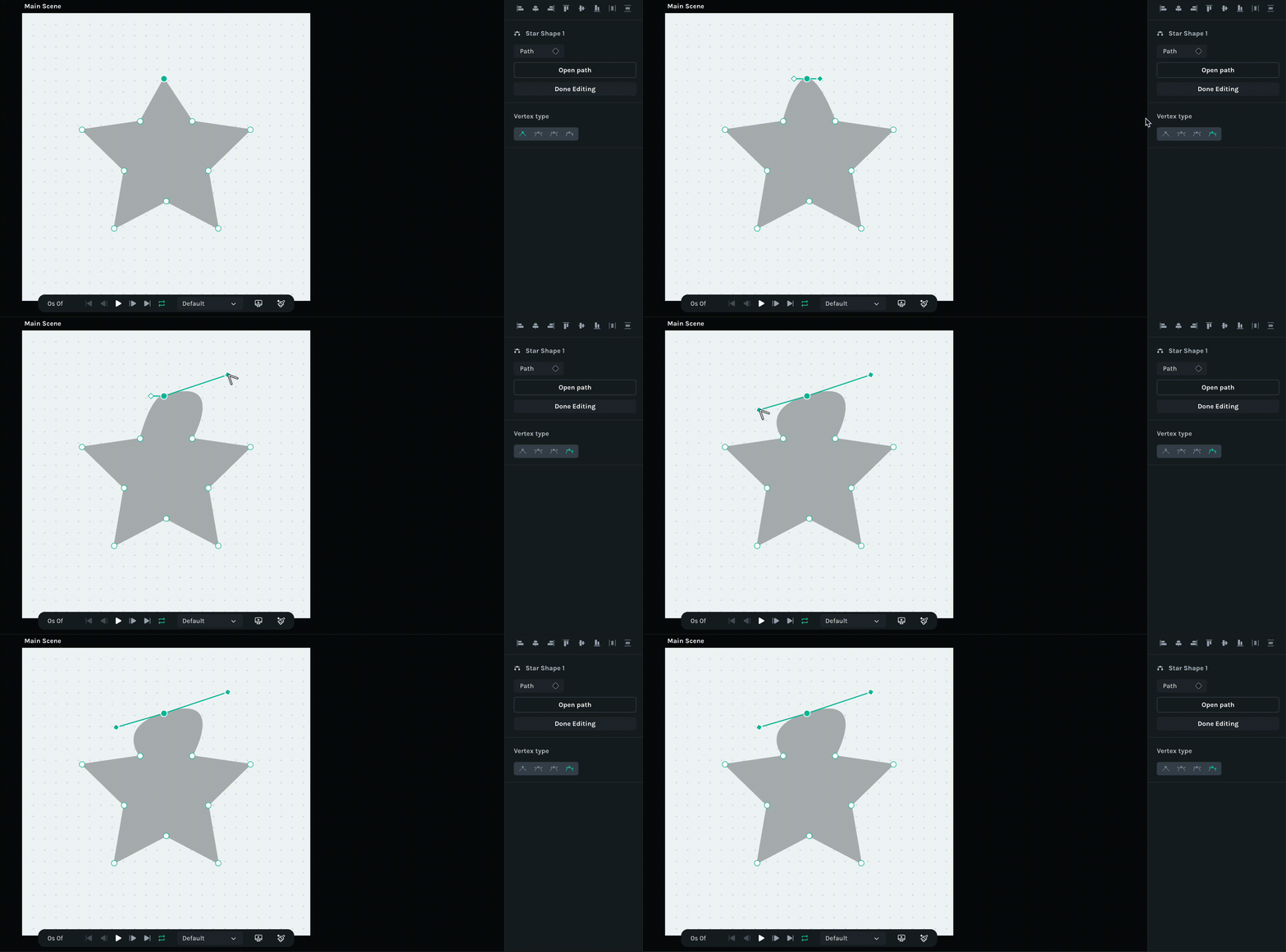
- •Mirrored: smooth curve with perfectly balanced handles
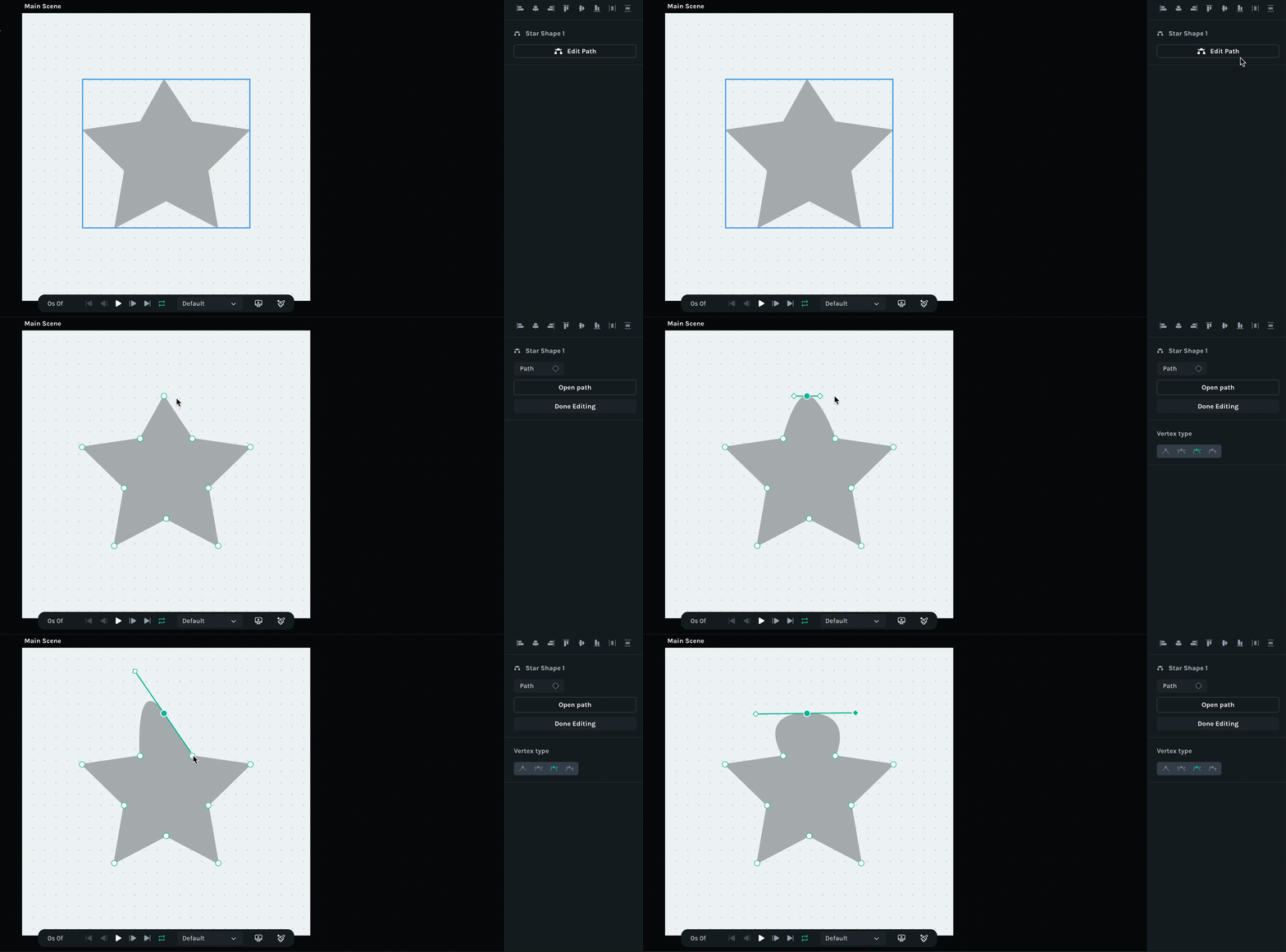
Bezier handles
Bezier handles extend from path vertices and control curve shape between vertices.
- •Handle length controls curve strength
- •Handle direction controls curve angle
- •Handles appear when a path anchor is selected
Select path vertices
- •Click a path anchor to select it
- •Shift click to select multiple vertices
- •Drag to marquee select
- •Press Escape to deselect
Move path vertices
- •Drag vertices to reshape the path
- •Arrow keys move by 1 px
- •Shift + Arrow moves by 10 px
- •Hold Shift while dragging to constrain movement to X or Y
Adjust curves
- •Drag a bezier handle to reshape the curve
- •Longer handles create wider curves
- •Shorter handles create tighter curves
- •Hold Alt while dragging a handle to break handle symmetry
Change path anchor type
Right click a selected path anchor and choose:
- •Convert to Sharp
- •Convert to Curve
- •Convert to Disconnected
- •Convert to Mirrored
Add or remove path vertices
Remove vertices
- •Select a path anchor and press Delete
- •Or click an existing anchor with the Pen tool
Use the fewest path vertices needed for smooth shapes.
Open and close paths
- •Click the first path anchor with the Pen tool to close a path
- •Delete a path anchor to open a closed path
Last updated: October 8, 2026 at 10:45 AMEdit this page