Property Panel Overview
The Property Panel is where you adjust the appearance, transform, and behavior of scenes and layers in Lottie Creator. The panel updates automatically based on what you have selected — whether that's the scene, a layer, a group of layers, a shape inside a layer, or an animated property.
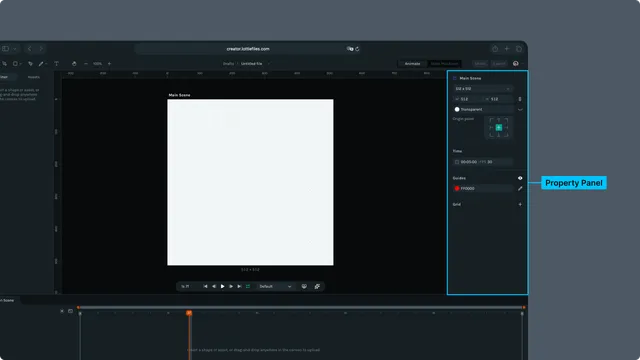
What the Property Panel Shows
The panel adapts based on your selection:
| Selection | Property Panel Shows |
| Scene (nothing selected) | Canvas size, duration, background color, FPS |
| Single layer selected | Transform, alignment, blend modes, opacity, masking |
| Multiple layers selected (group) | Shared transform and alignment controls for the selection |
| Shape inside a layer | Fill, stroke, gradients, path options, trim path |
| Animated property selected | Property-specific controls (e.g. Trim Path shows Start, End, Offset) |
This context-aware approach keeps the interface clean and makes commonly used settings easy to access.
How to Access Properties
- •Click the canvas (empty area) → Scene properties
- •Click a layer in the Outliner → Layer transform & appearance
- •Shift-click or drag-select multiple layers → Group selection controls
- •Click a shape inside a shape layer → Shape-specific fill/stroke settings
- •
Click an animated property in the timeline → Property-specific controls (e.g. selecting Trim Path shows Start, End, and Offset fields)
The Property Panel always reflects exactly what you have selected.
Numeric Input Math
Type math expressions directly into any numeric input field and Creator will calculate the result on the fly.
- •Enter expressions like
100+50,360/4, or*2and the value updates automatically - •
Adjust values relative to what's already there, split angles, scale sizes — all without breaking your flow
- •Works across position, rotation, scale, opacity, and more
Property Categories
1. Transform
- •Position
- •Scale
- •Skew
- •Rotation
- •Anchor Point
2. Alignment
- •Horizontal alignment tools
- •Vertical alignment tools
3. Appearance
- •Fill (solid, linear gradient, radial gradient)
- •Stroke (solid, dashed, gradient stroke)
- •Stroke width, color, opacity, dash pattern
- •Blend modes
- •Layer opacity
4. Compositing & Masks
- •Track matte
- •Mask settings (depending on layer type)
5. Path Controls (shape layers only)
- •Trim Path
- •Path editing options
6. Text
- •Text Content
- •Font Size
- •Font Style
- •Alignment