Outliner
The Outliner (Layer Panel) displays your scene hierarchy and provides quick access to layer controls. Use it to manage layers, organize complex projects, and navigate your scene structure.
Outliner overview
The Outliner shows all layers in your scene as a hierarchical tree structure.
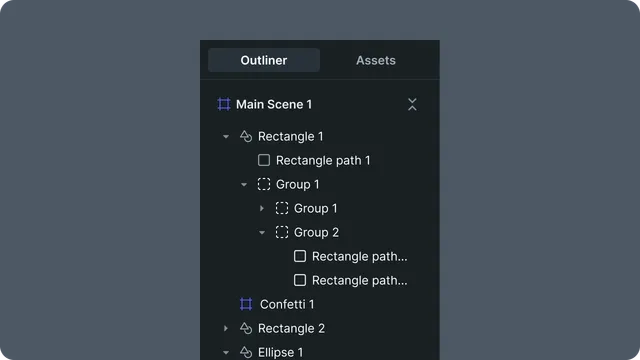
Layer row components:
- •Collapse arrow (expand/collapse child layers)
- •Layer name (editable text)
- •Layer actions (visibility, lock, focus)
Hierarchy display
The Outliner shows layer organization as a tree with indentation showing nesting level. Tree lines connect parents and children.
Expanding and collapsing:
- •Click the arrow next to the layer name to expand/collapse
- •Reveals child layers or shapes
- •Keyboard: Arrow keys to expand/collapse selected layer
Layer selection
Single selection: Click layer name or row
Multi-selection:
- •Cmd/Ctrl + Click — toggle layer in selection
- •Shift + Click — range select between layers
- •Cmd/Ctrl + A — select all layers
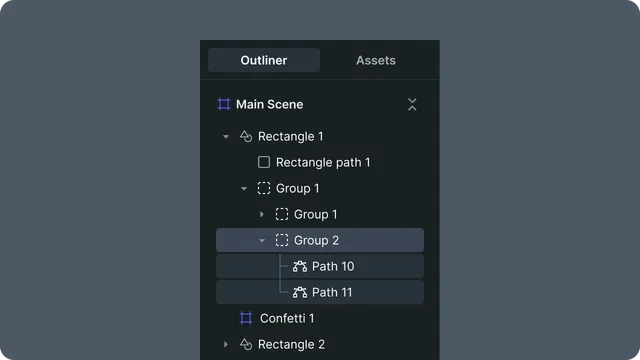
Selection states:
- •Primary selection (brighter highlight)
- •Secondary selection (darker, indicates child layers selected)
Layer visibility
Eye icon:
- •Eye open = visible, eye closed = hidden
- •Hidden layers don't render on canvas
Layer locking
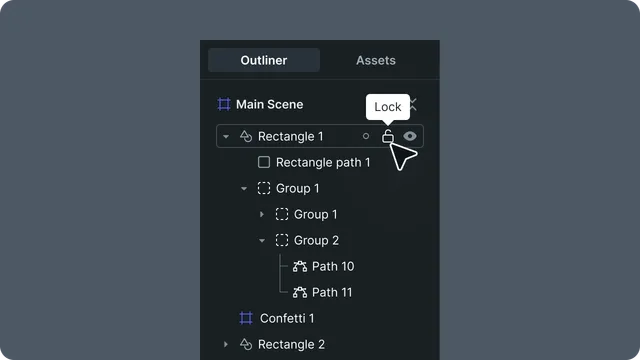
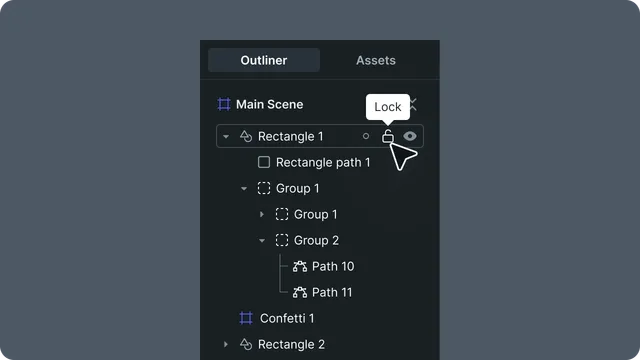
Lock icon:
- •Lock icon = locked, unlock icon = unlocked
- •Locked layers can't be selected on canvas
- •Prevents accidental changes
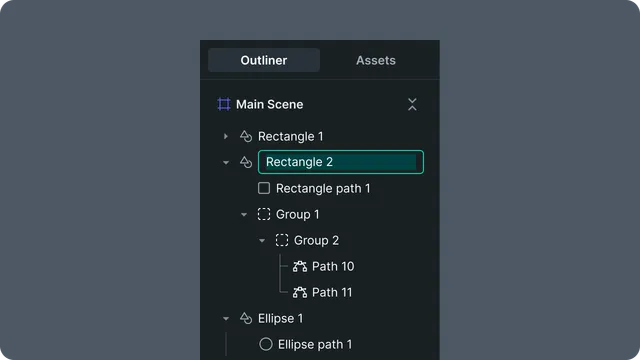
Layer naming
Renaming layers:
Select a layer and press Enter
Type a new name (max 128 characters)
Press Enter to confirm, Escape to cancel
Layer reordering
Drag and drop:
Click and hold layer name
Drag up or down in list
Blue line indicates drop position
Release to drop at new position
- •Lower draw order = rendered on top