Preview
Preview your animations to see how they look and behave before exporting.
Shortcuts
Spacebar : Play / Pause
Playback Bar
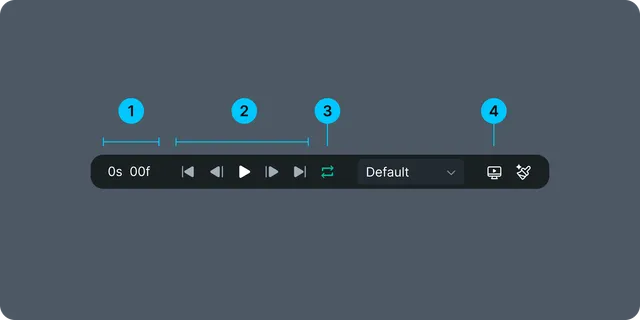
The Playback Bar provides full playback controls and is located at the bottom center of the canvas. Use it when you want precise navigation or prefer UI-based controls instead of shortcuts.
Time Input : Allows you to enter an exact timestamp to jump directly to a specific moment in your animation.
Play Controls
- •Play / Pause
- •Jump to the start
- •Jump to the end
- •Move forward one frame
- •Move backward one frame
Loop Playback : Toggle the loop option to continuously repeat your animation during preview.
Open Preview Player : Open the external Preview Player to see how your animation behaves in a real runtime environment.
Setting Playback Range
You can limit the portion of the animation you want to preview by adjusting the Work Area.
Drag the Work Area handles at the start and end of the timeline
Only the selected range will loop when you press Play
Useful for refining a specific section without replaying the full animation