Interface
This page walks through the LottieFiles plugin panel inside After Effects. Understanding the interface up front makes the feature-by-feature documentation easier to follow.
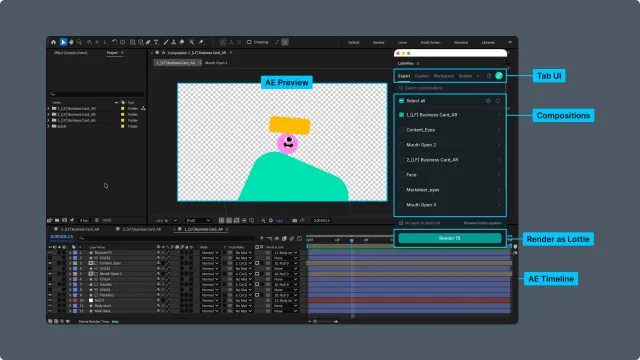
The plugin is organized into four interface areas. Each one is covered in detail below.
1. Top tab bar
The top tab bar is the main way to move between the plugin's features. Five tabs are available:
Export — render an After Effects composition out as a Lottie animation. See Export.
Explore — browse the public LottieFiles library. See Explore.
Workspace — your team's animations, images, source files, projects, and folders. See Workspace.
System — reusable Motion System colors, fonts, easings, presets, and assets. See Motion System.
Import — bring an existing dotLottie file into your project. See Import.
The active tab is underlined; click any tab to switch.
2. Account area (top-right)
The top-right corner exposes a small set of account-level actions.
Help dropdown — links to documentation, support, and feedback channels.
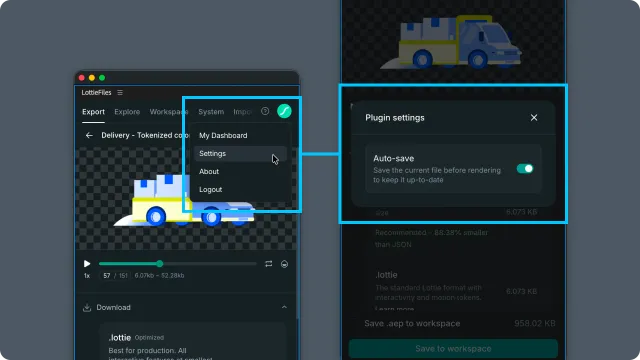
Account avatar (when signed in) — opens a menu with My Dashboard, Settings, About, and Logout.
User icon (when signed out) — drops down to About plugin and Log in via browser.
Choose Settings to open the Plugin settings modal. Its Auto-save toggle takes effect immediately:
When enabled, the plugin saves a changed AEP before rendering.
When disabled, the plugin asks whether to save when the AEP has unsaved changes.
If the project has no unsaved changes, rendering starts without saving or showing a save prompt. Workspace preferences are still managed on the LottieFiles website.
3. Main content area
The main content area below the tab bar changes based on the active tab. Each tab has its own layout, controls, and behaviors, all documented in their respective chapters.
When you're working with a list of animations or files, the content area typically supports infinite scroll, search, and sorting where applicable. Specific behavior is documented per tab.
4. Bottom action bar
A bottom action bar appears when long-running operations are in progress — for example, an import that's queued or a render that's running. The bar shows progress and lets you cancel or inspect the operation.
When no operations are running, the bottom area is hidden and the main content area uses the full vertical space.
Related
Installation — install the plugin and open it in After Effects.
Your first import — sign in, find an animation, and import it into a composition.