Animating an SVG
Apply a motion preset to an SVG, preview it, and add it to a Canva design.
Turn static vector artwork into a lightweight animation by applying a motion preset.
Prepare the SVG
Use clean vector paths and simple groups. Embedded raster <image> elements are not supported by the SVG import workflow.
Apply motion
Open Import.
Upload the SVG file.
Choose a motion preset.
Preview the result.
Try another preset if the direction or timing does not fit the design.
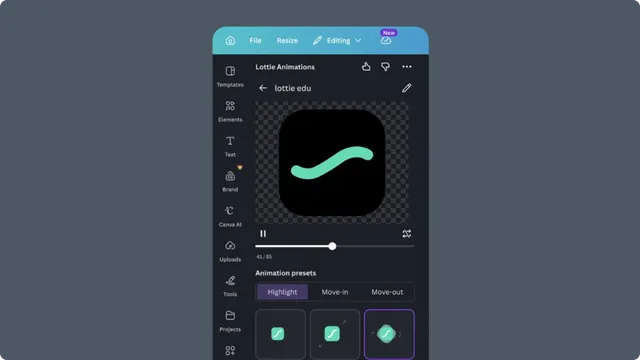
Preset availability can change as the app evolves, so choose by preview rather than relying only on the preset name.
Add to Canva
When the result is ready, click Add to design. Position and size it with Canva's canvas controls.
Refine in Lottie Creator
Choose Open in Creator when the preset is a useful starting point but you need to change timing, easing, layers, or individual keyframes. Save the advanced edit in Lottie Creator, then return to Canva through Workspace.
Troubleshooting
The SVG is rejected - remove embedded images, external references, or unsupported markup and try again.
The artwork looks incomplete - flatten unsupported effects into vector paths before import.
The preset does not fit the composition - try another preset or refine the animation in Creator.