Importing from file
Bring a local .lottie, .json, or .svg file into your After Effects composition.
How to access this
Open the LottieFiles plugin in After Effects.
Click Import in the top tab bar.
The Import tab shows a dropzone — a large drag-target area in the center of the panel.
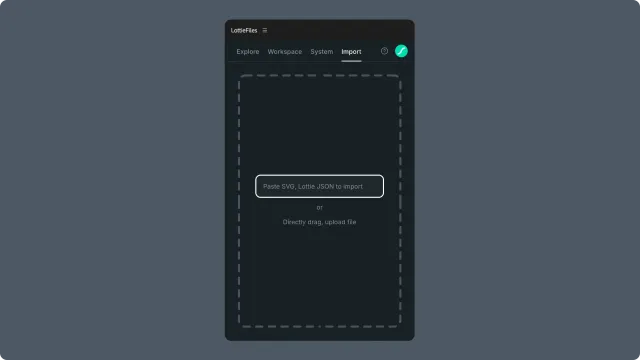
Drag and drop
The most direct way to import.
Open the folder containing your file in Finder (macOS) or Explorer (Windows).
Drag the file onto the Import dropzone.
The plugin parses the file and shows a preview.
Confirm to insert the animation into your active After Effects composition.
If the file format isn't supported, the dropzone shows an error. Accepted formats: .svg, .json, .lottie.
File picker (click to choose)
If drag-and-drop isn't convenient, click the dropzone area to open a file picker dialog.
Click the Import dropzone center area or the Choose file button (label may vary).
Navigate to your file in the system file picker.
Select and confirm.
Same parse + preview + insert flow follows.
Preview before insert
After the file is parsed, the panel shows:
The loaded file name and back arrow in the header.
The animation playing in a preview player.
Playback controls, the background color control, and the frame/speed readout.
An Insert to AE action in the sticky footer.
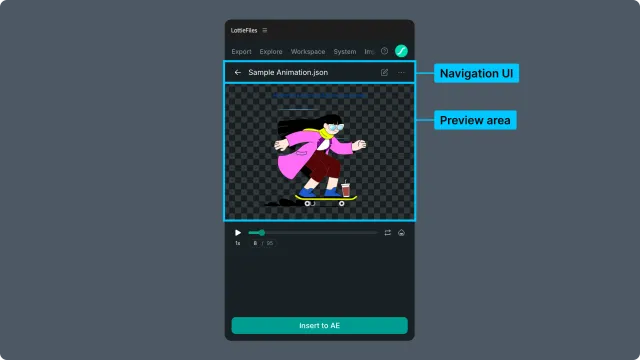
If you want to bail out without inserting, click the back arrow in the file header or drag a different file onto the Import area.
Inserting
Click the Insert action to add the previewed animation to your active After Effects composition — the plugin imports it as a layer and returns focus to After Effects with that layer selected. If no composition is open, the plugin prompts you to create or open one first. The previewed file persists until you reset.
SVG behavior (special case)
When you import a .svg, the plugin converts the vector graphic into After Effects shape layers, not a Lottie animation. This gives you fully editable vector layers to animate from scratch.
What carries over from the SVG:
Path data — shape outlines become vector paths on shape layers, preserving curves and corner radii.
Fill and stroke colors — applied as Fill and Stroke properties on the shape layer.
Groups — SVG
<g>groups become AE pre-comps or grouped shape layers (depending on nesting depth).Element
idattributes — used as layer names when present; otherwise generic names are assigned.
What does NOT carry over:
SVG animations (
<animate>, SMIL) — strip these from the SVG before import or animate from scratch in AE.CSS-based styling on SVG elements — only inline style attributes are read reliably.
Filter effects (drop shadow, blur applied via SVG filter) — recreate in AE.
Use cases:
Animating a brand icon for the first time.
Reusing an Illustrator/Figma export as the source for a new Lottie.
Adding vector elements to a Lottie composition you're building.
Tips for motion/product designers
For multi-frame icons exported as SVG sequences, import each frame separately or use a single SVG and animate via keyframes in AE — the plugin doesn't combine multi-file SVG into one animation.
.lottieis preferred over.jsonfor sharing with teammates — smaller files, optional state machines and themes. See Render → choosing format.
Troubleshooting
File rejected — confirm the extension is one of
.svg,.json,.lottie. Files renamed but with wrong content (e.g., a.txtrenamed to.json) will also reject.Insert disabled — confirm an After Effects composition is open. The plugin can't insert without a target comp.
Imported animation plays incorrectly — the source file may use Lottie features your After Effects rendering doesn't preview cleanly. Open the file in a runtime instead to see how it'll actually play; consider running it through the Feature checker.
Related
Importing from URL — when the source is a link, not a local file.
Working with multi-animation files — multi-animation
.lottiehandling.Import panel controls — UI reference.