Workspace assets
Browse and use animations, Creator files, and other assets saved in LottieFiles Workspace.
Workspace connects Canva to your team's digital asset library. Use it when an animation has already been approved, belongs to a specific project, or needs to remain private.
Workspace can contain more than Lottie animations. Depending on the file and current Canva support, you may see Creator files, SVGs, PNGs, GIFs, and other saved assets alongside .json and .lottie animations.
Access Workspace
Connect your LottieFiles account.
Open Workspace.
Confirm the active workspace.
Open a project, collection, or folder.
Continue through nested folders until you find the asset.
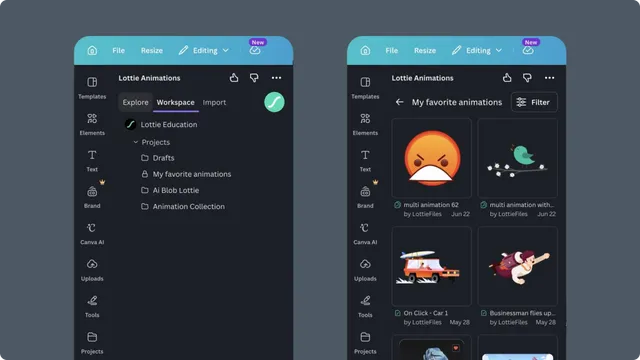
Preview and use an asset
Select a supported animation to preview it. From the preview you can play it, choose a child animation from a bundle, recolor supported artwork, and add the result to Canva.
Static assets are inserted in a format Canva supports. Creator files and editable Lottie sources can offer an Open in Creator action instead of direct editing inside Canva.
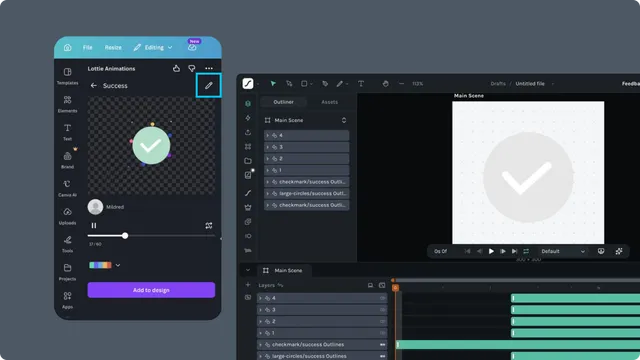
Keep the approved source clear
When the same animation has several versions, confirm the file name, preview, and project location before insertion. If someone edits the asset externally, reopen or refresh it in Canva before adding it again.
Advanced editing
Use Lottie Creator when you need to change layers, keyframes, timing, easing, or other animation structure. Save the result to the intended Workspace location, then return to Canva and refresh the asset.
Troubleshooting
Workspace is empty - confirm the active workspace and your permission to its projects.
An asset has no Add to design action - the file may require Creator or may not be supported for direct Canva insertion.
An external update is missing - close the preview and reopen the file, or reopen the LottieFiles app.