Publishing your site
Preview, stage, publish, and verify a Webflow site that contains Lottie animations.
The app prepares and inserts the animation. Webflow owns site preview, staging, production domains, and publishing permissions.
Preview before publishing
Use Webflow Preview to test:
Desktop and mobile breakpoints used by the page.
The initial frame, complete playback, and loop boundary.
Light and dark browser preferences when runtime themes are configured.
Pointer and touch paths for state machines.
Navigation away from and back to the page.
Page controls near or above the animation.
Advanced dotLottie players may show only a thumbnail on the design canvas. Preview is the first place to confirm the real web component and page custom code together.
Publish to staging
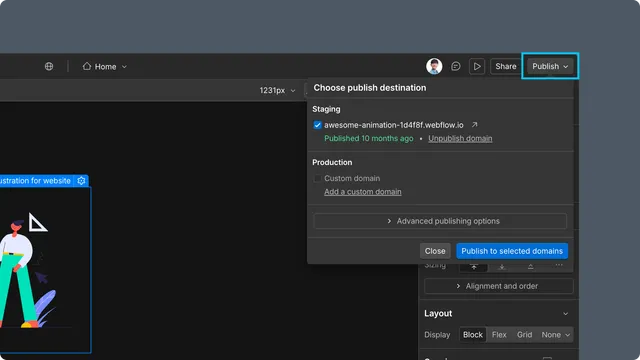
Open Publish in Webflow.
Select the
webflow.iostaging domain and leave production domains unchecked.Publish the selected changes.
Open the staging URL in a clean browser tab.
After review, publish the same approved changes to the intended production domains. See Webflow's current publish and unpublish guide.
Verify the live page
Confirm that assets and runtime scripts load without editor authentication. Test state machines and themes on the actual URL, and repeat important checks on a physical mobile device.