Sharing an animation
The Share button at the top of any workspace file's detail view turns the animation into a public URL anyone can open in a browser — no LottieFiles account required on the recipient's side. Generate it once, paste it into a doc or chat, and the same URL keeps working as you iterate. This is the foundation of every async review and developer handoff flow.
How to access this
Open the LottieFiles plugin in After Effects.
Click Workspace in the top tab bar.
Navigate to the file you want to share.
Click the Share button next to the file's preview.
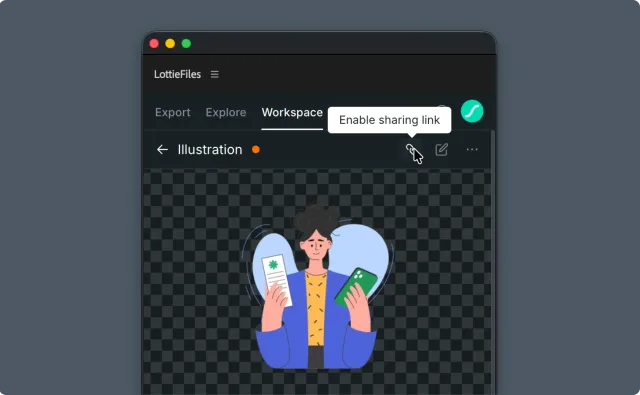
Generate a sharing link
The Share button changes behavior depending on the file's current state:
First click on a file with public access disabled — enables public access for the file, generates a shareable URL, and copies it to your clipboard automatically. Tooltip shows "Enabling sharing link" briefly, then settles into "Copy sharing link".
Subsequent clicks — re-copy the existing URL to your clipboard without re-enabling.
The URL is stable as long as public access is on. You can paste it into Slack, Linear, Notion, Figma comments, design docs — anywhere a link works.
Re-copy or open the link later
The Share button doesn't reset state between sessions. If you enabled the link last week and want to copy it again today, click Share — same URL, no re-enabling step.
To preview what the recipient will see, click the URL in your clipboard (paste into the browser address bar). You'll see the animation in a public LottieFiles player, no sign-in required.
Disable sharing
If a project wraps or sensitive work needs to stay internal:
Open the file's detail view in the plugin.
Open the share controls (typically a small menu next to the Share button).
Toggle public access off.
Once disabled, the URL stops working immediately. Anyone holding the link sees a "not available" page.
What recipients see
Recipients clicking the share URL get:
The animation playing in a browser-based player at full quality.
Playback controls (play/pause, loop, scrubber).
No sign-in prompt.
No download button on the public page — they can view, not necessarily extract the file.
For developers who need the actual .lottie or .json to embed, send them the share URL plus the variant (e.g., "use the optimized .lottie from this link") — they can fetch via the LottieFiles API or you can hand them the file directly.
Tips for motion/product designers
Set the share link once at the start of a project and pin it in your Slack channel. Every Update from AE keeps it fresh — your team doesn't get a new URL every revision.
For client-facing review, share the link instead of MP4 exports. Clients see the same vector quality your team sees; you don't waste time re-exporting MP4s for every iteration.
The link is a workspace-level secret in disguise. Disable sharing on files that contain unreleased brand assets before archiving the project.
Troubleshooting
Share button doesn't appear — confirm you're signed in to the workspace that owns the file. Public access is a per-file workspace permission.
Link copied but recipient sees "not available" — confirm public access is still on (re-open the file in the plugin; the Share button tooltip will tell you).
Link works but doesn't reflect latest version — the recipient may have a cached browser view. Have them hard-refresh.
Related
Updating a version — keep the same link valid across versions.
Tracking file status — signal which version reviewers should look at.
Working with a file — full file view reference.