Workspace
Browse and insert private or team-approved LottieFiles assets into Webflow.
Workspace connects Webflow to the asset library your team manages in LottieFiles. Use it when the source is private, belongs to a project, or must be reviewed and versioned before publication.
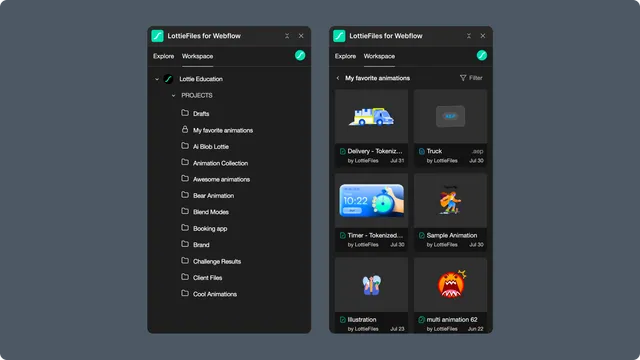
Workspace as the source of truth
Workspace answers which source and version the team approved. It does not create a live synchronization link to Webflow. Standard files are copied into Webflow Assets, while advanced files use the source selected at insertion time.
When the Workspace file changes:
Review the new version in the app.
Reinsert or replace the existing Webflow element.
Reapply page-specific styles and playback choices.
Preview and publish the site again.
In this chapter
Browsing and searching - switch workspaces and navigate projects, collections, folders, and files.
Inserting Workspace animations - preview the approved file and add it to Webflow.
Plans and limits - understand sign-in, access, and storage constraints.