Importing from URL
Bring a Lottie animation from a URL directly into your After Effects composition — without needing to download and re-upload the file. Useful for teammate-shared links, public Lottie URLs, and dotLottie host links.
How to access this
Open the LottieFiles plugin in After Effects.
Click Import in the top tab bar.
Copy a Lottie URL to your clipboard.
Paste anywhere inside the Import tab (the plugin's paste listener catches the paste).
Supported URL formats
The paste listener accepts:
lottie.hostURLs — direct dotLottie host links shared from LottieFiles.lottiefiles.comanimation URLs — public library or workspace shareable links.Direct
.json/.lottieURLs — any publicly accessible Lottie file.
What happens after paste
The plugin detects the pasted URL and validates it's a Lottie source.
Fetches the file (this requires an internet connection).
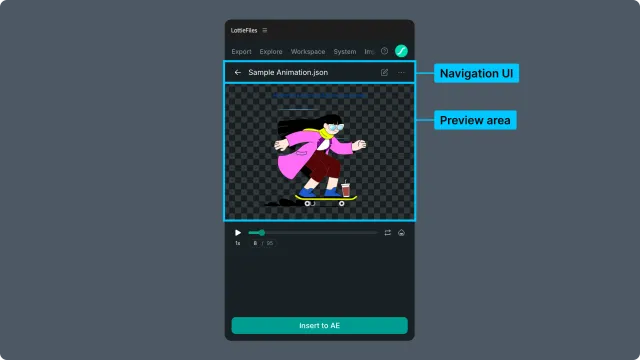
Shows the animation in the preview area, same as a local file import.
You can then insert into your active composition.
When paste isn't recognized
If you paste something that isn't a recognized Lottie URL, the listener ignores it — your clipboard content remains intact. You'll see no error; it's silently skipped.
To verify a URL is valid: open it in a browser first. If the URL serves a Lottie JSON or dotLottie file, the plugin will accept it.
Sign-in considerations
Some workspace URLs (private animations) require you to be signed in to the same account that has access. Public URLs (lottie.host, public lottiefiles.com pages) work without sign-in.
If a paste fails to load and you're signed out, sign in via the top-right account area and try again.
Tips for motion/product designers
Use
lottie.hostfor handing files off — those URLs are stable and don't require recipient sign-in.Paste-from-URL doesn't copy the file locally. The animation is fetched and imported; if the source URL goes down later, you have the imported layer but no live link back.
For client work, snapshot the source. If you paste from a URL, also save the Lottie to your workspace (or download) so you have a copy independent of the original link.
Troubleshooting
Paste doesn't trigger anything — your clipboard content may not be a recognized Lottie URL. Check the URL opens a Lottie in a browser.
URL recognized but load fails — connectivity issue or the source requires authentication you don't have. Try opening the URL in a browser to confirm.
Inserted animation looks different from the source — the source may use Lottie features that don't preview the same way inside After Effects. Run the file through the Feature checker to see exactly what's in it.
Related
Importing from file — for local files instead.
Workspace — your saved animations, no URL paste needed.