Importing an animation
Import a local Lottie file or direct animation URL into the LottieFiles app for Canva.
Use Import when you already have the animation but it is not available in Explore or Workspace.
Supported starting points
A local Lottie JSON (
.json) file.A local dotLottie (
.lottie) file.A direct URL to a supported animation file.
An SVG file that you want to animate with a motion preset.
SVG uses a separate workflow. See Animating an SVG.
Import a local Lottie file
Open Import.
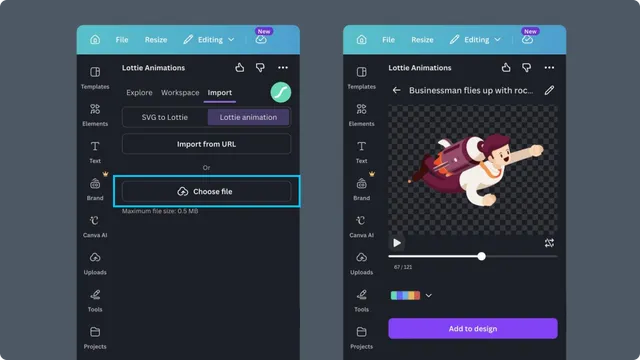
Choose the local file option.
Select a
.jsonor.lottiefile.Wait for validation and preview.
Inspect playback before continuing.
Import from a URL
Open Import.
Choose the URL option.
Enter a direct, publicly accessible animation URL.
Open the preview.
A webpage URL is not the same as a direct file URL. The address must allow the Canva app to retrieve the animation.
Continue from preview
After import, you can recolor supported artwork, choose a child animation from a multi-animation file, add the result to the Canva design, or open it in Lottie Creator.
Import validation
The app rejects invalid JSON, unsupported expressions, oversized files, and unsupported embedded SVG image content. See Compatibility and GIF fallback for current limits.