Testing state machines
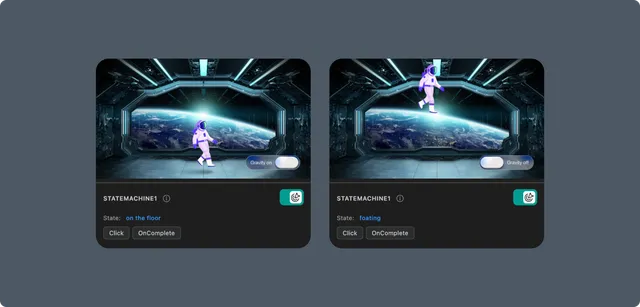
Run and interact with a dotLottie state machine before integrating it in an application.
Test interactive animation logic in the preview before connecting it to application events.
Requirements
State machines are stored inside .lottie files. Keep the dotLottie source throughout testing and integration; exporting to Lottie JSON removes the state-machine definition.
Start a state machine
Open a
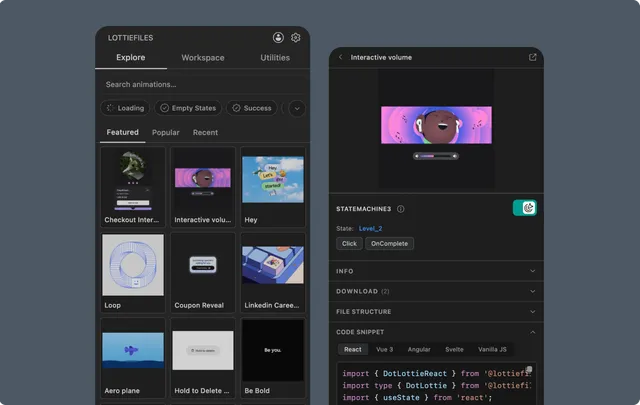
.lottiethat contains one or more state machines.Expand the state-machine or interactivity panel.
Choose the state machine.
Click the start action.
Interact with the preview or its exposed inputs.
Use stop or reset before switching to another state machine.
Inspect inputs and events
The panel can surface the inputs and events defined by the state machine. Test representative values and confirm that:
The intended transition occurs.
Repeated input does not leave the animation in an invalid state.
Reset returns to the expected initial state.
Pointer or event-driven behavior matches the product interaction.
Integrate the result
Use generated dotLottie runtime code as a starting point, then connect application state or UI events to the state-machine inputs. Utilities also provides a State Machine interaction snippet.
Generate TypeScript state-machine IDs when you want to replace fragile string literals. See Validating animations and generating types.
Troubleshooting
No state machines appear - confirm the source is the original
.lottie, not a JSON export.An input does nothing - start the state machine first and verify the input name and type.
The preview and app differ - check that both use a compatible dotLottie runtime and the same file version.
Palette controls are unavailable - some previews keep recoloring and active state-machine playback separate.