Working with multi-animation files
Choose a child animation from a multi-animation dotLottie file before adding it to Webflow.
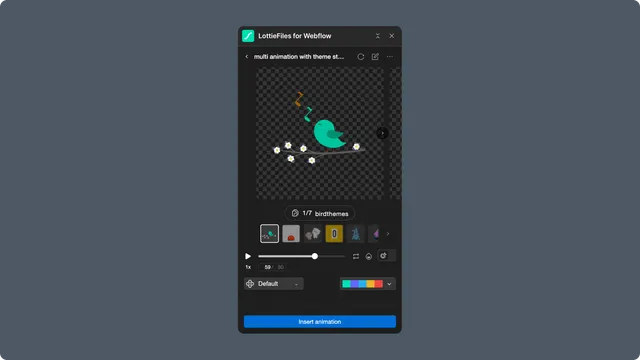
A dotLottie file can contain several related animations. The app shows them as a carousel so you can preview and select the child that belongs on the current page.
Choose the child animation
Open the multi-animation file from Explore or Workspace.
Wait for the child animation list to load.
Move through the carousel and compare names, IDs, and previews.
Select the child animation to add.
Apply a theme or state machine only if it belongs to that child.
Understand the insertion result
For ordinary native Webflow playback, the app extracts the selected child as Lottie JSON and inserts that result.
For dotLottie v2 or an active state machine, the app inserts an advanced dotLottie player and passes the selected animation ID to the published runtime.
The second path preserves more bundle behavior but adds a web component and page custom code. Use it only when those features are required.
Verify the result
After insertion, confirm that the expected child loads first in Webflow Preview and on the staging URL. A static thumbnail in the design canvas does not prove that the advanced player initialized correctly.