Motion System basics
The concepts behind Motion System — what a system, section, and item are, how draft publishing works, and how the Figma plugin uses those items.
A motion system is a collection of items
A motion system is a named container of design elements specific to motion design. Think of it as a Figma library, but for time-based properties.
A motion system contains sections. Each section is a typed group of items.
Section types in the Figma plugin
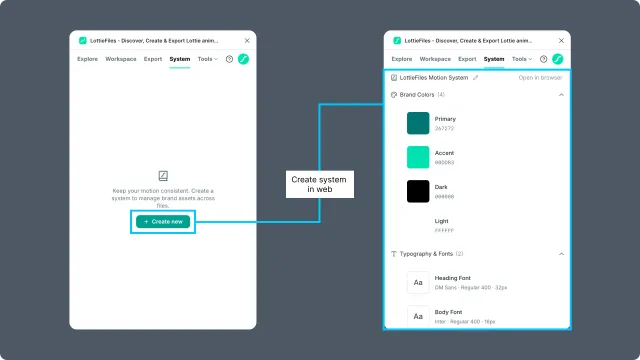
The System tab shows these sections when a Motion System has items:
| Section type | Stores | Example items |
| Brand Colors | Solid colors and linear gradients | brand-primary, accent-warning, bg-surface |
| Easing Curves | Named cubic-bezier curves | ease-in-out-soft, bounce-strong, spring-quick |
| Typography & Fonts | Font family, weight, size, line-height, and letter-spacing references | display-bold, body-regular |
| Motion Presets | Pre-authored animation patterns | fade-in-up, scale-pulse, slide-from-right |
| Collections | Workspace, URL, or uploaded image/Lottie assets | success-icons, loading-states |
The tab also shows a Documentation section when the system includes motion vibe, description, personality, or principles content.
Draft and Published
Editing happens in a draft version. Click the edit (pencil) icon to create or open the draft. While a draft is open, the panel header shows Editing {system name}, a draft label, Publish, and View published when a published version exists. Publishing makes the draft the live version. A system with no values or assets cannot be published.
How Motion System fits into your workflow
The typical flow:
Create the system — choose Create new to open the Motion System web dashboard. Create the Motion System and manage the system itself there.
Add or edit items — open an existing system in the Figma plugin to add, edit, rename, or delete supported colors, easing curves, font styles, and collection assets. Publish the draft when the changes are ready.
Apply items in Figma — apply colors to selected fills or strokes, apply fonts to selected text layers, prepare frame or prototype flows with an easing or preset, and insert collection assets into the canvas. Basic motion presets can be edited on the web; use Lottie Creator for more detailed preset creation.
Related
Editing sections — fill in items.
Choosing an output format — Motion System work can still use the plugin's existing download formats.