Preparing your Figma scene
Prepare Figma frames, layers, names, text, and effects before converting a scene to Lottie.
Good Figma to Lottie results start before export. The converter needs a Figma scene that is clear enough to map into motion output.
Start with the right scene structure
Use a single frame for preset animation.
Use multiple selected frames for a sequence.
Use a prototype flow starting point for flow-based animation.
Use supported prototype interactions for an interactive state machine.
Keep layers consistent across frames
When exporting multiple frames or prototype flows:
Keep the same layers present across frames.
Keep layer order consistent.
Hide layers with opacity instead of deleting them when they need to disappear.
Work from the final frame backward when building variants, so the layer structure stays stable.
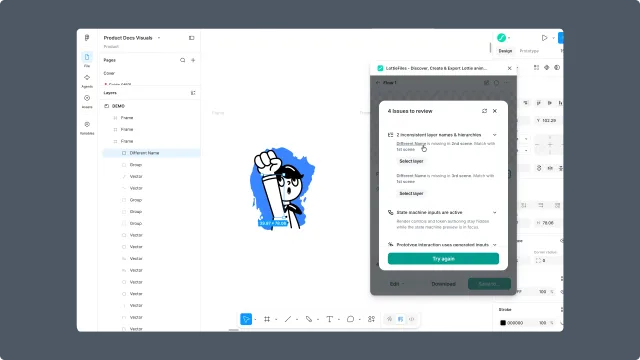
Keep names and text values stable
Layer matching depends on consistency. Avoid changing the same text layer into different text values across frames. Use separate text layers and toggle visibility when text content changes.
Use supported Figma features
The export guide groups support around these areas:
Interactions and actions.
Shapes and curves.
Text.
Images.
Fills and gradients.
Strokes.
Effects.
Animation and transition behavior.
Unsupported or partially supported features can produce an orange warning, an unexpected render, or a failed export. See Supported Figma features.
Avoid fragile visual stacks
Avoid stacking multiple fills, gradients, strokes, shadows, or effects on one object when the animation needs to export cleanly. If a visual style is complex, consider flattening it intentionally or simplifying the animated layer.