Finding animations
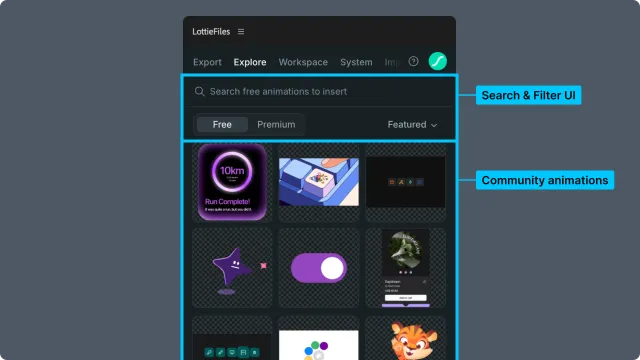
The Explore tab makes the LottieFiles public library searchable inside After Effects. This page covers how to search, what surfaces in Featured, and how to switch between the Free and Premium tabs.
How to access this
Open the LottieFiles plugin in After Effects.
Click Explore in the top tab bar.
You'll land on the Free tab by default. The page shows Featured animations at the top, followed by the public library grid.
Searching
The search bar at the top of the Explore panel filters animations across the active tab (Free or Premium).
Free tab search — searches the public library.
Premium tab search — searches curated Premium collections.
Switching tabs while a query is active re-runs the search in the new tab's scope. The query persists across tab switches.
Browsing without a query (Featured)
With no search query, the Free tab surfaces:
Featured collection — curated by the LottieFiles team, refreshed periodically.
Public Animations — paginated grid of the broader public library.
Featured is a good entry point when you're not sure what you need yet. Public Animations gives you the wider sample.
Switching to Premium
Click the Premium tab to switch into the Premium library. Premium content is licensed differently from the free public library — see Premium animations for the licensing model and what's included.
Tips for motion/product designers
Search by motion intent, not just by topic — "spinner", "checkmark success", "loading dots" tend to surface useful results faster than "animation".
When you find a useful animation, save it to your workspace first before customising — it gives you a place to return to.
Featured rotates — bookmark anything you want to keep handy via your workspace.
Related
Premium animations — licensing and what Premium offers.
Previewing and importing — once you've found something.
Explore panel controls — UI reference.