Previewing local Lottie files
Open a local .lottie or Lottie JSON file and inspect playback and file features in VS Code.
Preview a local animation while you work instead of switching to a separate player.
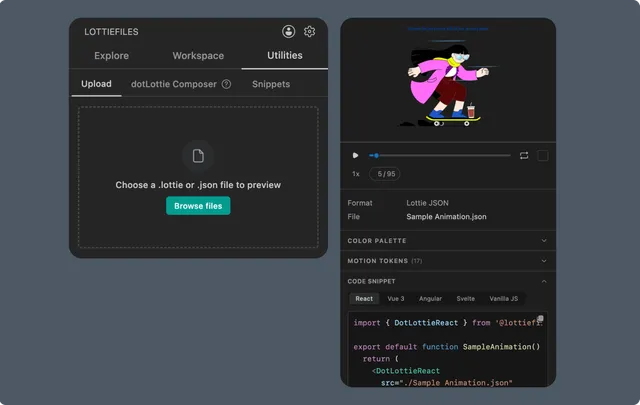
Open a local file
Use either entry point:
Open a recognized
.lottieor Lottie JSON file in the editor and run the LottieFiles preview action.Open
Utilities -> Upload, browse for a.lottieor.jsonfile, then click Preview.
Utilities keeps a recent list for the current session. Removing an entry from that list does not delete the original file.
The extension can also preview a recognized unsaved Lottie JSON buffer. Save the file before using project-relative integration paths.
Playback controls
Use the preview to:
Play or pause.
Scrub through frames.
Toggle looping.
Change playback speed.
Change the preview background.
Reload after editing.
For Lottie JSON, the preview refreshes while you edit valid animation data. Invalid JSON pauses the successful update until the syntax is fixed.
Inspect the file
The available panels depend on the file contents:
Info or manifest - format, dimensions, duration, and embedded metadata.
Animations - child animations inside a multi-animation
.lottie.Markers - named frame ranges that code can play.
Segments - custom start and end frames for testing.
Themes and motion tokens - embedded styles and editable slots.
State machines - interactive logic and inputs.
Code Snippet - runtime code for the current source.
Invalid or unrecognized JSON
General JSON files do not open as Lottie previews. A Lottie animation normally contains animation version, layers, assets, frame range, and composition dimensions. Use editor diagnostics and validation tools to locate errors.