Installation
Install the LottieFiles plugin from Figma Community and open it in a Figma design file.
Install the LottieFiles plugin from Figma Community, then run it from a Figma design file when you are ready to browse, insert, or export animations.
Before you start
Figma - use a design file where you can run plugins.
A LottieFiles account - free; needed for Workspace and saving exported files.
A prepared Figma scene - only needed when you want to use Figma to Lottie.
Install from Figma Community
Click Open in Figma or Run.
Choose the Figma design file where you want to use the plugin.
Figma makes the plugin available from your plugin menu after the first run.
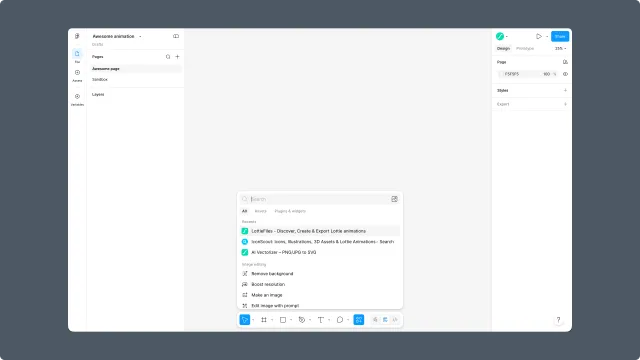
Open the plugin in Figma
Open a Figma design file.
Right-click the canvas.
Go to Plugins.
Choose LottieFiles.
The plugin opens as a panel over the Figma canvas.
Sign in
Sign in with your LottieFiles account when you need to:
Access Workspace files.
Save exported animations to a workspace.
Use plan-gated content such as Premium animations.
Share a workspace asset with teammates or developers.
You can still browse parts of Explore without preparing a Figma scene.
Troubleshooting
The plugin does not appear in the plugin menu - run it once from Figma Community, then reopen your design file.
Sign-in opens in a browser and does not return - finish the sign-in flow in your browser, then return to Figma and reopen or refresh the plugin panel.
Export does not start - confirm you selected a frame, multiple frames, or a prototype flow before clicking Animate.