Adding an animation to your design
Insert the current animation preview into Canva and verify the result on the canvas.
Add the animation only after verifying the exact preview state you want to use.
Check the preview
Before insertion, confirm:
The correct animation or child animation is selected.
The palette is the version you want.
Playback completes without unexpected frames.
The result works against the intended background.
Add to design
Click Add to design.
Wait for Canva to insert the element.
Select the inserted result on the canvas.
Resize and position it.
Play the Canva page or design to verify the complete animation.
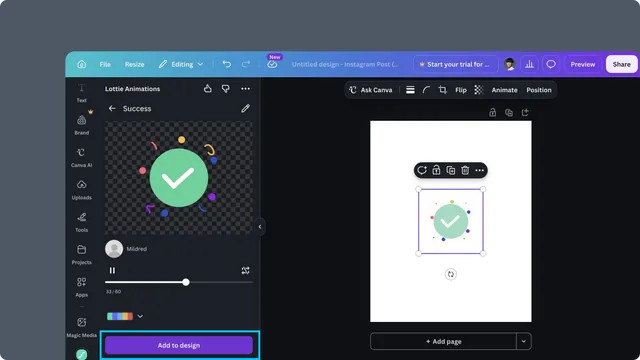
The selected child animation and supported recolor state are applied to the inserted result.
After insertion
Use Canva's canvas controls to duplicate, layer, resize, position, or remove the element. To change the source animation, return to the LottieFiles app, create the new result, and insert it again.
If insertion does not complete
Wait for any conversion progress to finish before closing the app.
Check for a compatibility or GIF fallback prompt.
Try a smaller or simpler animation.
Reopen the preview if the Canva session has been idle.