Inserting Workspace animations
Preview an approved Workspace file and add it to a Webflow page.
Workspace insertion starts from a private or team-managed source and ends with either a native Webflow Lottie element or an advanced dotLottie player.
Add the selected file
Select the intended page element or container in Webflow.
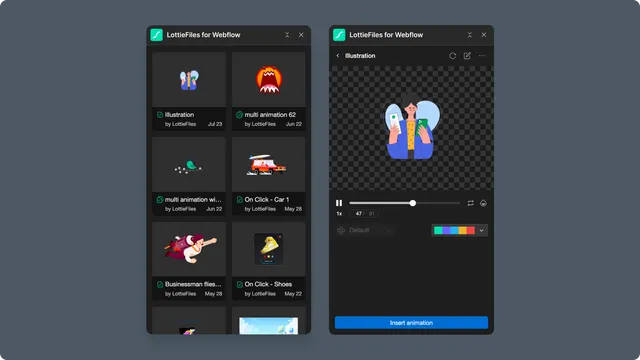
Open Workspace and navigate to the approved file.
Play the preview and confirm the current animation, palette, theme, and state-machine mode.
Select Insert animation.
Inspect the inserted element in the page and Navigator.
Understand the result
Ordinary Lottie playback creates a Webflow Asset and native Lottie element.
dotLottie v2 or an active state machine creates an advanced player inside the selected container and adds the required page custom code.
The advanced path can show a thumbnail on the design canvas while the real player runs in Preview and on the published page.
Customized files
If you recolor the animation, the primary action changes to Save and insert animation. The app saves a new Workspace file first. Open the saved result and select Insert animation to continue. See Recoloring an animation for the complete workflow.