Recoloring an animation
Apply a preset or custom palette, save the recolored source to Workspace, and insert it into Framer.
Use a color palette when the motion is right but the artwork does not match the Framer site. Recoloring writes one fixed set of colors into the saved animation. It is different from switching themes at runtime.
Choose a palette or a theme
| Goal | Use |
| Replace detected colors with one fixed palette | Palette controls |
| Switch between variants, including Framer light and dark modes | Themes |
| Edit individual layers, gradients, timing, or structure | Lottie Creator |
Open the palette controls
Open an animation from Explore or Workspace.
Play the complete preview to confirm that the motion is suitable.
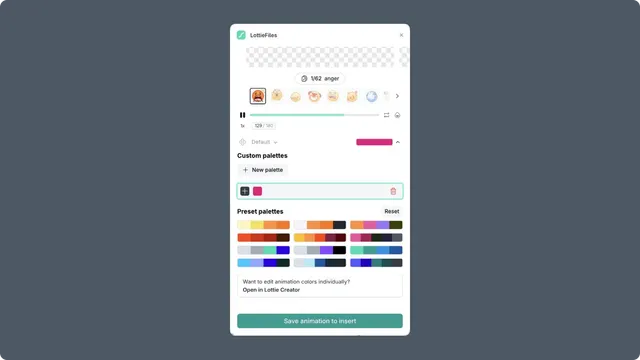
Select the palette swatch below the preview to expand the color controls.
The selected palette is applied to the preview immediately. Keep the preview background and size consistent while comparing results.
Apply a preset palette
Select a palette under Preset palettes. The plugin replaces detected editable colors together, so play and scrub through the entire result. A source color can appear in more than one layer or animation state.
Select Reset to restore the original colors before trying another palette.
Create a custom palette
Select New palette under Custom palettes.
Select a color swatch and choose a replacement color.
Add more colors as needed, up to 10 colors in one palette.
Select the completed palette to apply it to the animation.
Play and scrub through the result on a representative page background.
You can remove individual colors or delete a custom palette that is no longer needed.
Save the recolored source before insertion
When a palette is active, Insert animation changes to Save animation to insert. The recolored source must be saved to Workspace before it becomes the file inserted into Framer.
From Explore
Select Save animation to insert.
Choose the intended Workspace, project, and folder.
Save the animation with a name that distinguishes it from the public source.
Open the saved Workspace file and select Insert animation.
From Workspace
Choose one of the following in the save dialog:
Save changes creates a new version of the current Workspace file when the plan and permissions allow it.
Save as new animation keeps the source unchanged and creates another Workspace file.
The plugin warns that saving a color change removes theme and state-machine settings from the saved result. Use Save as new animation unless replacing the current file is intentional and the recolored result no longer needs those features.
Recolor a multi-animation file
The palette applies to the currently selected child animation. Switching to another child resets the active palette. When you save, the plugin rebuilds the dotLottie file with that child recolored and keeps the remaining animations in the bundle.
Before insertion, reopen the saved file and confirm the active child animation, its ID, and the complete bundle.
Limitations
Palette replacement changes detected editable vector colors. It does not recolor embedded raster images.
Some gradients and complex color effects may not map cleanly to a palette.
Reused source colors can change in several layers or states at once.
A fixed recolored source is not a live connection to a Workspace theme.
Use Lottie Creator for layer-specific colors, gradient editing, or structural changes.