Motion System panel controls
Reference the Motion System panel controls, including selectors, edit mode, sections, apply actions, and empty states.
A UI reference for the Motion System tab in the Figma plugin.
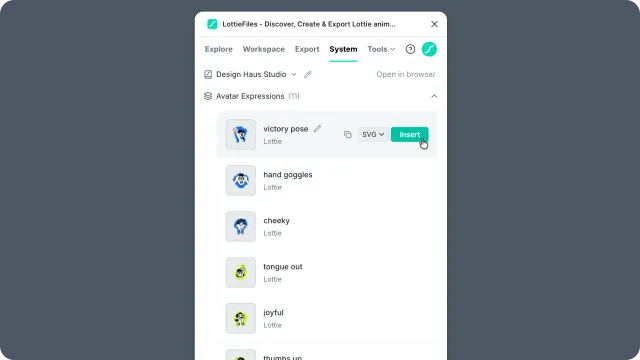
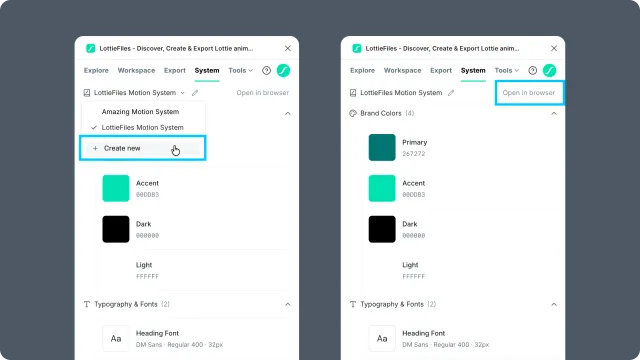
System selector
At the top of the tab:
| Control | What it does |
| System name | The current system. With one system, the name shows directly; with several, it becomes a dropdown. |
| System dropdown | Switches between the workspace's systems. Systems are ordered as published, draft, then archived. |
| Create new | Opens the Motion System web dashboard to create a system. |
| See details | Appears when the current workspace cannot create a Motion System and opens the relevant plan information. |
| Edit (pencil) icon | Opens an existing system in edit mode so you can add or update supported items. |
| View draft | Appears when a draft exists and you're viewing the published version. Opens the draft for editing. |
| Open in browser | Opens the current system in the web dashboard for system-level management. |
Create and manage the Motion System itself in the web dashboard. In the plugin, open an existing system to add or edit supported items, publish changes, and apply them to your work.
Edit mode header
While editing, a bar appears above the system:
| Control | What it does |
| Editing | Indicates which system is in edit mode and shows a draft label. |
| View published | Leaves draft view and returns to the published version, when one exists. |
| Publish | Makes the draft the live version. Publishing is blocked until the system has content. |
Sections
Each section that has content is shown as an accordion with an item count:
| Section | Controls |
| Documentation | Read-only motion vibe, description, personality, and principles. |
| Brand Colors | Solid and gradient color rows. Copy solid hex values, choose Fill, Stroke, or Both when the selection supports it, then apply. + Add, edit, and delete are available in edit mode. |
| Easing Curves | Cubic-bezier curve rows. Copy the curve value, apply it to an eligible frame export, or add/edit/delete curves in edit mode. |
| Typography & Fonts | Font rows with preview, family, weight, size, line-height, and letter-spacing. Apply works on selected text layers. |
| Motion Presets | Preset preview cards with frame duration and keyframe count. Apply uses the selected frame to generate a preset animation preview/export. |
| Collections | Asset rows with preview, copy-link, and insert actions. Lottie assets can be inserted as SVG or GIF; image assets insert as the supported image format. |
In edit mode, a section title can be renamed from its header. Existing rows show edit and delete controls where that item type is editable.
Selection-aware actions
The System tab listens to the current Figma canvas selection and adjusts apply behavior:
Colors apply to selected paint targets. If the selection has both fill and stroke, choose Fill, Stroke, or Both before applying.
Fonts apply only to selected text layers. If no text layer is selected, the plugin prompts you to select one.
Easings can be used when you select two or more frames, or a frame that has a prototype flow.
Motion presets require a selected frame.
Easing interaction picker
When an easing curve is applied to a prototype flow with multiple Smart Animate interactions, the plugin asks which interactions should use the curve. If there is zero or one interaction to disambiguate, it applies directly and opens the animation preview/export flow.
When available, Smart Apply asks which selected layers or properties should receive the chosen motion system item. Use it when a selection contains more than one eligible target.
Empty system
When a system has no content, use Open in browser to finish setting it up in the web dashboard. Return to the plugin and choose Refresh to load the updated system.
Related
Motion System basics — concepts behind systems, sections, and drafts.
Editing sections — add and organize section items.