Motion System panel controls
Reference the System tab controls for selection, search, preview, code insertion, and download.
The System tab is a read-only browser for the active workspace's Motion System primitives.
Access and workspace
| State or control | What it does |
| Sign in | Connects the account required to load Workspace Motion Systems |
| Workspace context | Follows the workspace selected in the Workspace tab |
| System name | Shows the only available system directly |
| System selector | Switches systems when the workspace has several |
| Open in browser | Opens the selected system in LottieFiles Workflow |
Search
Search filters primitive names and useful values within the selected system. Matching text is highlighted. While search is active, matching sections stay open and display the filtered item count.
Sections
Each non-empty block becomes an accordion section with an icon, title, and count:
Brand Colors.
Easing Curves.
Fonts.
Motion Presets.
Assets or Collections.
Open or close the section from its header.
Primitive rows
Every row includes:
A swatch, curve, font, preset, or asset preview.
A name and short detail.
An optional direct-copy value, format badge, or download icon.
A Use button.
Click Use to reveal the usage block. The label changes to Hide while it is open.
Usage block
The usage block contains:
| Control | What it does |
| Format chips | Switch between supported code or value representations |
| Code preview | Shows the exact value or multiline snippet |
| Copy | Copies the current format to the clipboard |
| Insert | Writes the current format at the active editor selection or cursor |
Insert shows a confirmation only after the editor accepts the change.
Previews and downloads
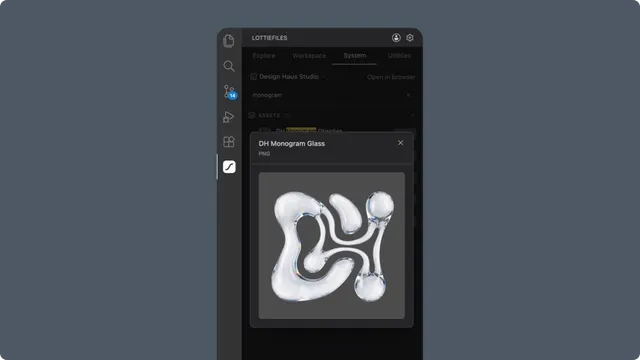
Click a collection-asset thumbnail to open a larger preview.
Lottie collection assets and motion presets use live animation previews.
Uploaded fonts and collection assets show a download icon when a real source URL exists.
Download prompts for a destination folder and confirms before replacing an existing file.
Empty and error states
The panel provides separate states for sign-in, missing workspace, no Motion Systems, empty system, no search matches, loading, and API errors. Use Retry after a recoverable loading error, or switch workspace when the expected system is not available.