Managing Themes and Changes
Add themes, edit Motion Token values, and save an updated dotLottie version from Workspace in After Effects.
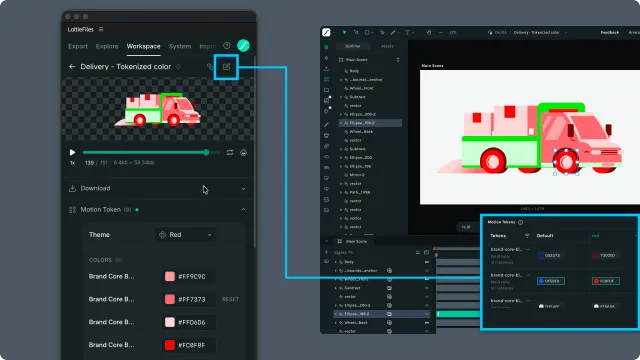
Use a tokenized dotLottie file from Workspace when you want to keep the token or theme changes you make in the After Effects plugin. Explore is intended for temporary preview and insertion; Workspace adds theme management and saving.
Open the Motion Token panel
Open Workspace in the LottieFiles plugin.
Select a dotLottie animation that contains Motion Tokens.
Expand Motion Token below the player.
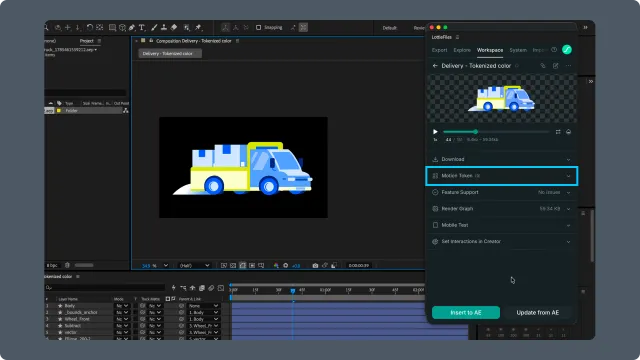
Understand Default and named themes
Default shows the file's base token values. A named theme stores a different set of values for the same tokens, so one animation can support variants such as different brand palettes or UI states.
Choose a theme to preview it immediately. Editing Default changes the base slot values when you save; editing a named theme changes only that theme.
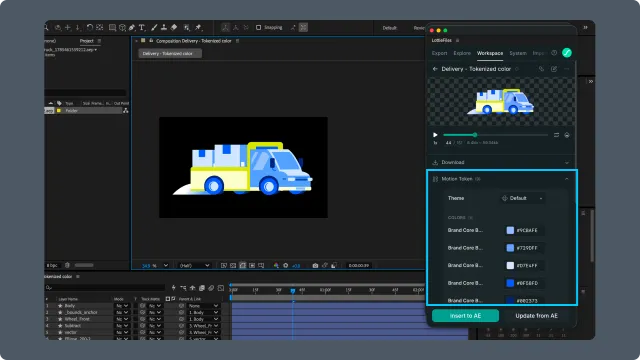
Add, switch, or rename a theme
Open the theme selector to switch between Default and existing named themes. Choose New theme when you want to preserve a new combination of token values. You can rename an existing theme, or rename or discard a new theme before it is saved.
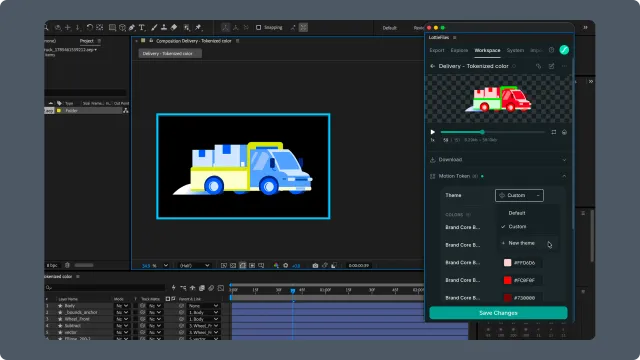
Edit values and save
Change the supported color, gradient, scalar, vector, text, or keyframed values you need. Each edit appears in the player immediately.
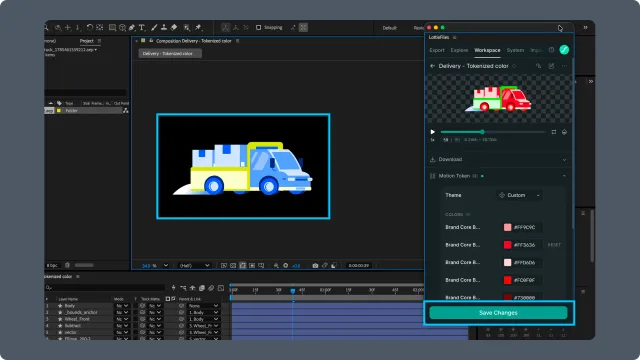
After a value changes, the footer shows Save Changes. Saving produces an updated Workspace version of the dotLottie file:
Changes made to Default update the file's base slot values.
Changes made to an existing named theme overwrite that theme's values.
A new theme is added to the file with its current name and values.
Continue in Lottie Creator
The After Effects plugin can edit existing token values and manage themes, but it does not create new token bindings. Select Open in Creator from the file header when you need to add Motion Tokens or continue editing the animation in Lottie Creator.
You can also create Motion Tokens while converting a design with the LottieFiles plugin for Figma.