Updating a version
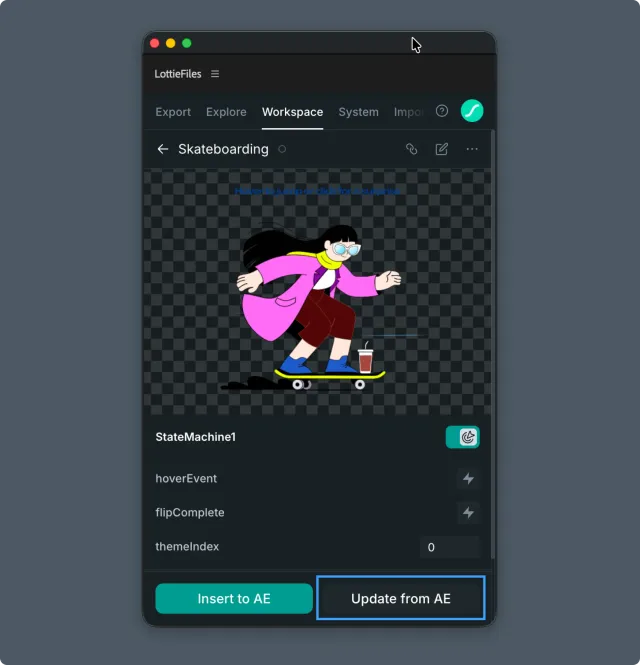
Update from AE is the feature that turns Workspace from a file dump into a versioned source of truth. The button sits at the bottom of any workspace file's detail view, right next to Insert to AE. Click it whenever you've edited a composition and want collaborators to see the new render at the same URL as before. The file ID, share link, comments, and status all stay; the animation and version metadata change.
How to access this
Open the LottieFiles plugin in After Effects.
Click Workspace in the top tab bar.
Navigate to the file you want to update.
Click Update from AE at the bottom of the file's detail view.
When to use Update from AE vs Export new
| Situation | Action |
| Reviewers already have the share link and you want them to see new work | Update from AE |
| Animation has diverged into a separate deliverable (new client, new product) | Export new (creates a new workspace file with a new URL) |
Use Export when you want a brand-new file. Use Update from AE when you're iterating on an existing one.
Pick a composition to push
Clicking Update from AE opens a search modal listing every composition in your current After Effects project.
Search or scroll to the composition that represents the new version.
Select it.
Confirm.
The plugin renders the selected composition and uploads it as the new version of the workspace file. You'll see an Animation updated toast when it's done. The file detail view refreshes to show the new version.
What stays the same, what changes
Stays the same:
File ID (so any URL referring to this file ID stays valid).
Share URL (if public access was on).
File status (you can bump it separately — see Tracking file status).
Comments and review history.
File location in projects/folders.
Changes:
The rendered animation itself.
Version metadata (the workspace tracks update timestamps).
Anything that depends on the underlying Lottie content (Feature checker re-runs against the new version; theme/state-machine inventory updates).
Multi-animation files
If the existing workspace file is a multi-animation .lottie, Update from AE replaces the entire file (all bundled animations), not just one of them. A confirmation modal warns before proceeding.
To update only one animation inside a multi-animation bundle, either:
Re-export the full bundle with the changed animation in place.
Use Export new to create a separate workspace file for the changed animation, then drop the multi-animation file.
Tips for motion/product designers
Treat Update from AE as your "publish" gesture. Every meaningful round of revisions ends with one click, not a re-export to a new file. Reviewers know the link always reflects the latest.
After Update from AE, bump the status (Needs review → Approved) so reviewers know which version they're looking at without opening AE.
Troubleshooting
Update from AE is locked — your workspace plan doesn't include version updates. Either upgrade or use Export new to create a separate file.
Modal opens but no compositions show — confirm After Effects has at least one composition open in the project. The picker reads from AE's project, not the workspace.
Update succeeds but reviewers see the old version — the share link is stable, but browsers cache. Have reviewers hard-refresh.
Related
Sharing an animation — set up the stable link first.
Tracking file status — signal each new version's review state.
Export — for creating brand-new workspace files.