Preparing state machines
Preview and select an interactive dotLottie state machine before publishing it in Framer.
State machines turn a dotLottie file from a fixed timeline into an interactive experience. Treat this as an advanced workflow: the file, player, page interaction, and published runtime all need to agree.
Preview a state machine
Open a dotLottie file that contains state machines.
Switch on state-machine mode in the preview.
Choose the intended state machine when the file contains more than one.
Use its pointer interactions and exposed inputs to test each important transition.
Restart the state machine before repeating a scenario.
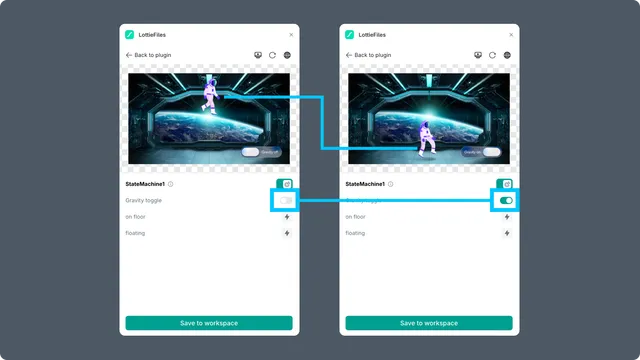
Insert the interactive result
Keep ThorVG Player or Automatic selected. When state-machine mode is active, the inserted Framer component receives the chosen state-machine ID and the compatible dotLottie source.
For a multi-animation bundle, select the child animation first. The plugin extracts that animation and keeps the chosen state machine that should run with it.
Production checks
Pointer interactions work with mouse and touch where expected.
The animation does not capture input needed by nearby page controls.
The initial state appears before the first interaction.
Restarting or revisiting the page returns to the intended state.
Light and dark themes still apply after the state machine starts.