Your first animation
Find a free animation, insert it into Framer, and verify it on a published site.
Use a simple, single-animation file for this first workflow. Save themes, state machines, and multi-animation bundles for later.
1. Choose the destination
Open the page where the animation should appear. Select a Frame if the new component should be nested and centered inside that frame.
2. Find an animation
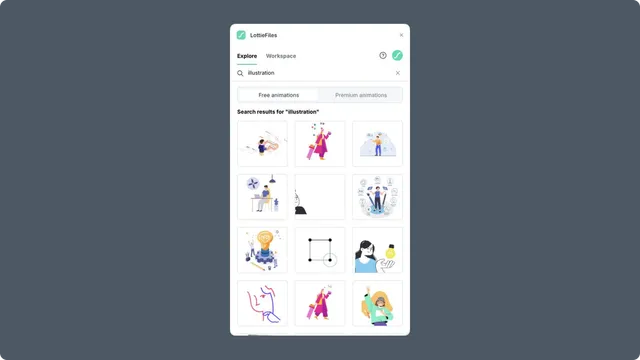
Open LottieFiles from Plugins.
Stay in Explore and select Free animations.
Search by purpose, such as
loading,success, orscroll.Open a result and play the complete preview.
3. Insert it
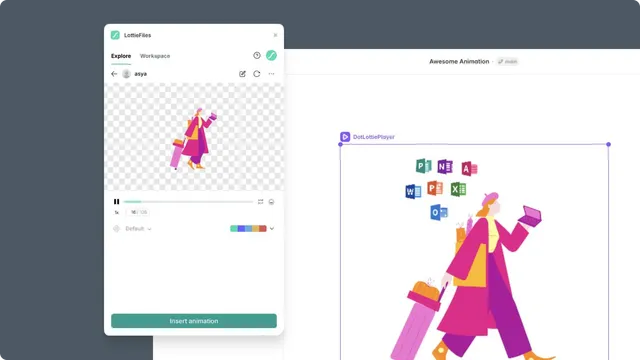
Keep the default renderer, transparent background, loop, and speed for this first test. Select Insert animation.
The plugin adds a LottieFiles player component, selects it, and moves the Framer viewport to the result. Resize and position the component with Framer's canvas controls.
4. Preview the page
Open Framer Preview and test the page at the intended desktop and mobile widths. Confirm that the animation:
Is visible and not clipped by its parent frame.
Keeps the expected aspect ratio.
Starts, loops, and responds as intended.
Does not block nearby links or controls.
5. Publish and verify
Publish to the generated framer.app domain or your team's staging environment. Open the published URL in a new browser tab and repeat the playback and responsive checks.
Publishing is complete only after the live result behaves correctly. See Publishing your site for the production checklist.