Motion System panel controls
Reference the Motion System panel controls, including selectors, edit mode, sections, smart apply, banners, and empty states.
A UI reference for the Motion System tab in the After Effects plugin.
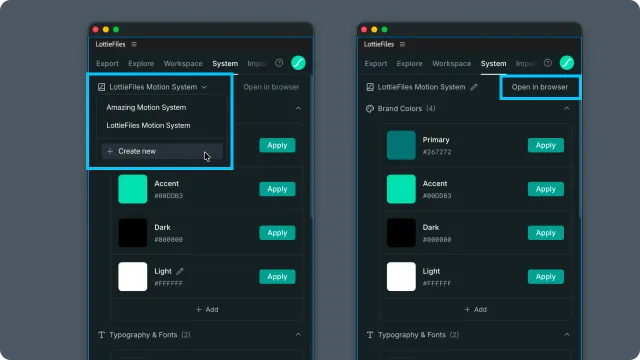
System selector
At the top of the tab:
| Control | What it does |
| System name | The current system. With one system, the name shows directly; with several, it becomes a dropdown. |
| System dropdown | Switches between the workspace's systems. Status badges mark draft, archived, and private systems. |
| Create new | Opens the Motion System web dashboard to create a system. |
| See details | Appears when the current workspace cannot create a Motion System and opens the relevant plan information. |
| Edit icon | Opens an existing system in edit mode so you can add or update supported items. |
| Open in browser | Opens the current system in the web dashboard for system-level management. |
Create and manage the Motion System itself in the web dashboard. In the plugin, open an existing system to add or edit supported items, publish changes, and apply them to your work.
Edit mode header
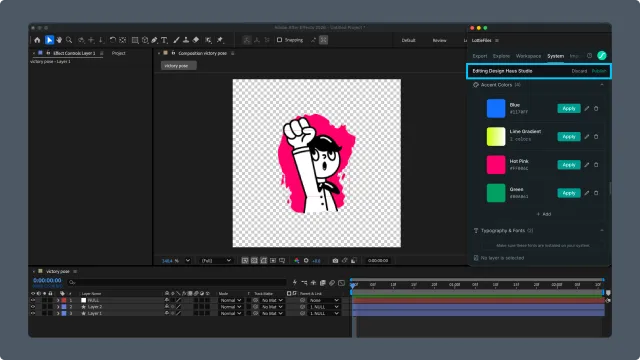
While editing, a bar appears above the system:
| Control | What it does |
| Editing | Indicates which system is in edit mode. |
| Discard | Throws away the draft. Confirms first if it has changes. |
| Publish | Makes the draft the live version. Disabled for empty systems. |
Sections
Each section that has content is shown as an accordion with an item count:
| Section | Controls |
| Documentation | Read-only — motion vibe, description, personality, and principles. |
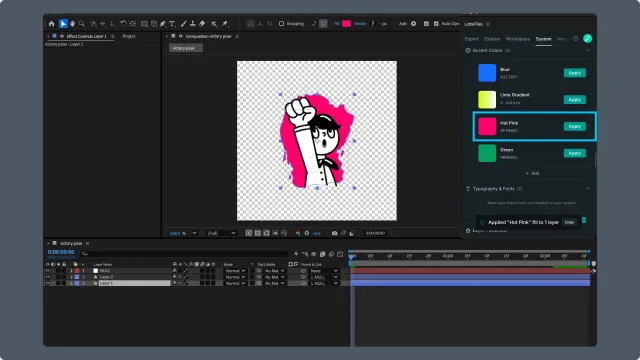
| Colors | Color swatches with apply; + Add in edit mode. |
| Easings | Easing curve cards with apply; + Add in edit mode. |
| Typography | Font rows; + Add in edit mode. Warns if a font is not installed. |
| Motion Presets | Preset cards with apply; Edit in Lottie Creator link. |
| Collections | Asset cards with import; + Add in edit mode. |
In edit mode, each section header offers an item edit icon and a rename action for the section.
Selection banner
A banner at the bottom of the tab reflects the current After Effects selection — the layer name, the number of layers, or the count of selected keyframes or properties. It guides what the apply actions will affect.
Smart Apply dialog
Applying an easing to a layer (rather than to specific keyframes) opens Smart Apply: a checklist of the layer's animated properties and their keyframe counts. Select which properties receive the easing, then Apply.
Empty system
When a system has no content, choose Manage system to finish setting it up in the web dashboard. Return to the plugin and choose Refresh to load the updated system.
Related
Motion System basics — concepts behind systems, sections, and drafts.
Editing sections — manage the design items inside a system.