Working with multi-animation files
Inspect, select, rename, and extend animations inside a multi-animation dotLottie file.
A .lottie file can package several animations behind stable IDs. Use the preview to inspect the bundle before selecting an animation in runtime code or building a new bundle.
Browse embedded animations
Open the .lottie preview and use the animation thumbnails or list to switch the active animation. The manifest's first or configured animation is the default.
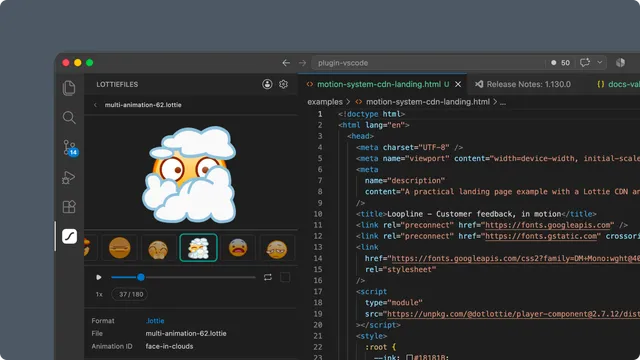
Check each child for:
Its animation ID.
Dimensions and frame range.
Markers and segments.
Theme, motion-token, or state-machine dependencies.
Rename an animation ID
Manifest-backed animation IDs can be renamed from the bundle interface. Use short, stable developer-facing names such as idle, loading, success, or error.
Changing an ID can break code that already references the previous value. Update runtime calls and generated types together.
Add another animation
Use the add control in the preview to append another Lottie animation to the current bundle. Confirm the ID and active animation after the updated bundle loads.
For a deliberate multi-file build with ordering, metadata, and a chosen initial animation, use dotLottie Composer.
Use one animation in code
Keep the .lottie file as the source and select its animation ID with the target dotLottie runtime. This preserves the rest of the bundle for other states or components.
Do not switch to JSON for bundle features
Lottie JSON represents one animation. Exporting a .lottie bundle as JSON keeps only the active animation and drops dotLottie-only multi-animation, theme, motion-token, and state-machine features. The extension warns before a lossy JSON download or URL action.
Preview changes vs saved output
Changes made in the preview are not a durable project artifact until you download or save the updated .lottie. Reopen the saved result to verify its manifest before integrating it.