Browsing and searching
Workspace content nests four levels deep: workspaces → projects → folders → files. The breadcrumb at the top of every page tells you where you are; the back arrow walks you out one level at a time. Search cuts across all of that when you know the filename or part of it. Use this page as a reference for finding the file you want to share, update, or tag — the collaboration pages explain what to do once you've found it.
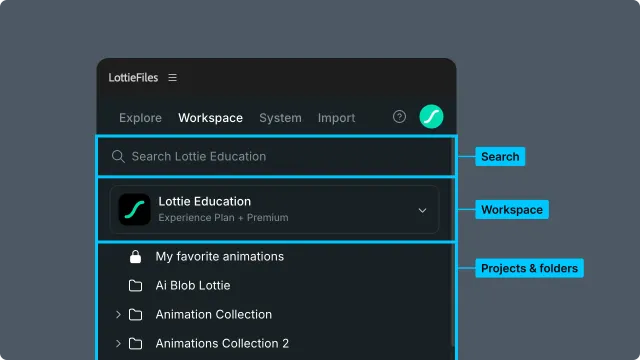
How to access this
Open the LottieFiles plugin in After Effects.
Click Workspace in the top tab bar.
The Workspace tab opens at the workspace landing — a grid of your projects.
Switch workspaces
If you belong to multiple workspaces (personal + team, or several teams), switch via the workspace selector at the top of the Workspace tab. Only one workspace is active at a time; everything below the selector reflects the active workspace's content.
The hierarchy
The four levels:
Workspace — the top container (your team or personal account).
Projects — large groupings inside a workspace (one per major piece of work or client).
Folders — subdivisions inside projects, nested up to 6 levels deep.
Files — Lottie animations, images, and source files such as AEPs.
Click a project to drill in, then a folder, then a file. Each click drops you one level down; the breadcrumb at the top tracks where you are.
Browsing a project
Clicking a project opens its grid:
Folders (with their item count).
Files at the project root (not nested in a folder).
The grid is paginated; scroll to load more.
Browsing a folder
Folders behave like projects, one level down. Folders can be nested up to 6 levels deep ().
Breadcrumbs
The breadcrumb at the top of every project/folder/file view lists your path. Click any segment to jump back to that level without re-traversing.
Search the workspace
Use the search bar at the top of the Workspace tab to find files and folders across the entire active workspace.
What's included in search
Files — animations, images, and source files across all projects and folders.
Folders — folder names across all projects.
Projects — currently excluded from results.
How matching works
Search matches on the file or folder name. Substring matching: "logo" returns "company-logo-v3.lottie" and "Logo Loader". Case-insensitive. Results refresh as you type.
When results are empty
Confirm you're in the right workspace (check the workspace selector).
Try a shorter substring — partial matches help when names differ slightly from what you remember.
The file may be in a workspace you don't have access to.
Add a file to AE
For supported animation files, drag the file card directly onto your After Effects composition panel. The plugin imports it as a new layer in the active composition (the one currently shown in the Composition panel). Behavior to know:
The new layer lands at the current time cursor position in the timeline.
The new layer is placed at the top of the layer stack (frontmost).
After Effects must have a composition open and selected; otherwise the drop is rejected.
This is the fastest path for an animation file — no need to open the full file view if you already know the file is right.
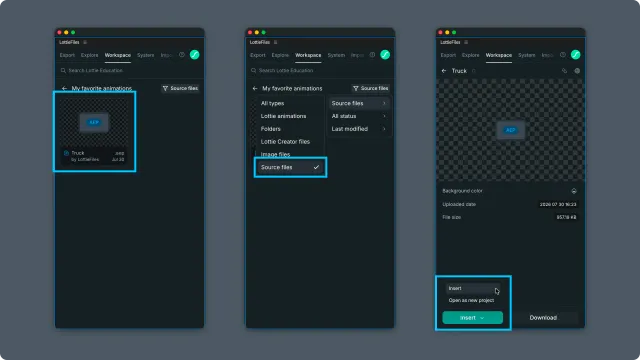
For an AEP source file, open its detail view instead. Choose Insert to merge the source project into the open project and open its main composition, or choose Open as new project to save and open it separately. Dragging an AEP card does not use the animation-layer import flow.
Tips for motion/product designers
Star or pin frequently-updated files in the LottieFiles web app — the plugin respects that ordering.
Name files for searchability, not aesthetics. "loading-spinner-v2.lottie" beats "Spinner FINAL ✨" when you search a year later.
Distinguish source AE comps from exported Lotties in naming —
ae-checkout-flow-v3for the AE source vs.lottie-checkout-successfor the exported file. When your workspace holds both, search returns just one or the other instead of mixing them.Use prefixes for related sets:
icon-success,icon-error,icon-loading— typingicon-shows the family.For client work, prefix with the client/project:
acme-checkout-confirm.lottie. Avoids collisions across projects.
Related
Sharing an animation — once you've found the file.
Updating a version — push new renders to the file.
Workspace panel controls — full UI reference.