Generating integration code
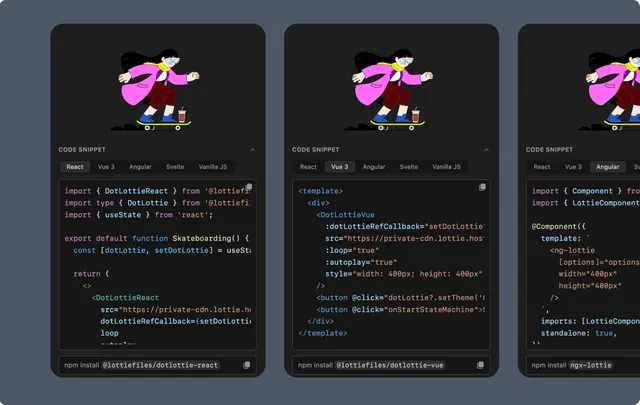
Generate basic player code for React, Vue, Angular, Svelte, or Vanilla JavaScript.
Use Code Snippet to create a player integration for the current animation. This is the basic playback workflow; interaction recipes live separately in Utilities.
Choose a stable source
Before copying code, use one of these sources:
A downloaded file committed to the project.
A permanent CDN URL enabled from Workspace.
An approved Motion System collection-asset URL.
Do not ship a temporary preview, upload, or presigned URL.
Generate the snippet
Open the animation preview.
Expand Code Snippet.
Choose React, Vue, Angular, Svelte, or Vanilla JS.
Configure the available playback options.
Copy the install command and code.
Available settings can include autoplay, loop, speed, renderer, and Next.js behavior. The extension chooses Lottie or dotLottie code based on the source and required features.
Install the runtime
Use the package named by the generated snippet. For example:
npm install @lottiefiles/dotlottie-reactKeep the runtime current and check its platform documentation before using advanced APIs.
Verify the result
Run the application and confirm:
The source resolves in development and production builds.
Autoplay, loop, and speed match the intended behavior.
The player is given stable layout dimensions.
The runtime preserves any required animation ID, theme, token, segment, marker, or state-machine behavior.
Advanced dotLottie features
The generated code can provide a starting point for themes, state machines, and multi-animation playback. Feature support varies by framework runtime. In particular, current Angular examples do not include theme, state-machine, or multi-animation controls.
Basic code vs interaction snippets
Code Snippet embeds and configures the player. For scroll, viewport, hover, click, or state-machine recipes, see Generating interaction snippets.