Previewing and importing
The bridge between finding an animation in Explore and using it in your After Effects composition. This page walks through hover preview, the full preview view, and the actual insert action.
How to access this
Open the LottieFiles plugin in After Effects.
Click Explore in the top tab bar.
Hover or click an animation card to start.
Hover preview
Hovering over an animation card in the grid plays the animation in place. This is the fastest way to scan a row of results — you don't have to click through to know which animations are worth a closer look.
The animation loops while your cursor is on the card.
Cursor away to pause and return to the static thumbnail.
Full preview
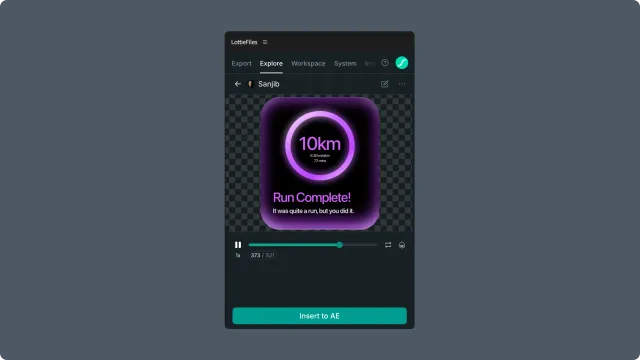
Click an animation card to open the full preview view. This shows the animation at a larger size with playback controls so you can confirm the motion before inserting.
To check creator, license, or file details, click Open in browser from the preview — those land on the animation's detail page on lottiefiles.com.
Inspecting a zoomed preview
Zoom above 100% to inspect details outside the initially visible area. When the cursor changes to grab, drag the preview or use a two-finger trackpad gesture to move the animation. The plugin keeps the animation within the preview boundaries. While panning is active, preview clicks do not trigger playback or State Machine interactions.
Motion Tokens
If an animation includes Motion Tokens, you can switch themes, preview temporary value changes, and insert the customized result. See Using Motion Tokens for the complete Explore workflow.
Inserting into a composition
From the full preview, click Insert to AE. The plugin always inserts the animation as a new composition in your After Effects project, regardless of which composition is currently active.
Guest (signed-out) inserts
Signed-out users can preview animations but inserts may be limited. Sign in via the top-right account area to unlock the full insert flow.
Tips for motion/product designers
AE's Composition preview can mis-render Lottie-specific easing (cubic-bezier interpolation Lottie expects vs. AE's native temporal interpolation). Trust the plugin's preview, not AE's, for final timing.
Related
Finding animations — get to the animation in the first place.
Premium animations — license considerations before insert.
Using Motion Tokens — preview token and theme values before insertion.
Explore panel controls — UI reference.
Limits and plans
Inserting free animations is available to everyone. Signed-out guests can insert up to 3 animations total per device; sign in (free account) for unlimited free inserts. Inserting Premium animations requires a paid LottieFiles plan that includes the premium content library — see How plans affect the plugin.