Using themes and motion tokens
Switch dotLottie themes and test motion-token values in a live VS Code preview.
Themes and motion tokens let one .lottie adapt without duplicating the complete animation. Use the extension to verify those variations before writing runtime logic.
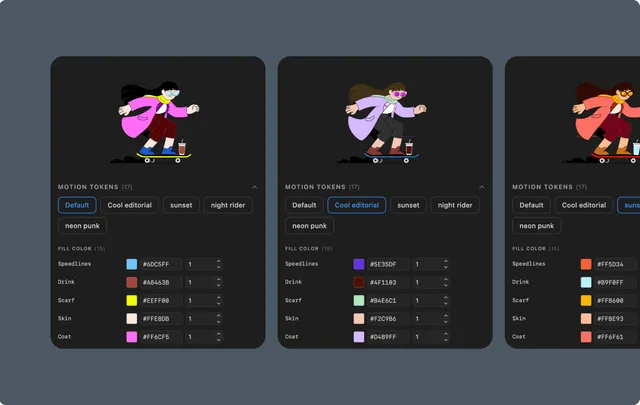
Themes vs motion tokens
A theme is a named set of slot values stored in the dotLottie manifest.
A motion token or slot exposes a specific animation value that a theme or runtime can override.
Both require .lottie; plain Lottie JSON does not preserve manifest themes or slot definitions.
Switch a theme
Open a
.lottiethat contains themes.Expand Motion Tokens or Theme.
Choose a manifest theme or preset.
Play the animation and inspect every affected state.
Use reset to return to the default theme.
Edit slot values
The panel can expose supported values such as:
Solid colors and gradients.
Scalars and vectors.
Text and typography values.
Animated slot values at existing keyframes.
Image slots are read-only. For animated values, the extension changes values at existing keyframes; it does not edit their timing, easing, or hold behavior.
Export or copy theme data
Some preview contexts expose theme-data export or a runtime setThemeData example. Use those actions only when they appear for the current file. Otherwise, preserve the .lottie and generate runtime code from the Code Snippet panel.
Authoring changes
VS Code is useful for testing and developer handoff. Use Lottie Creator to add new slots, change slot binding, author themes, or edit animated token timing.