Working with multi-animation files
A .lottie (dotLottie) file can contain more than one animation in a single bundle. This page covers how the plugin detects multi-animation files, how to pick which animation to insert, and how multi-animation workflow differs from single-file import.
What multi-animation means
A standard .lottie file wraps one Lottie animation. Multi-animation .lottie files wrap two or more — the bundle holds multiple animations indexed by name, often used for:
A set of related icons (success / error / loading variations).
A character with several distinct animations (idle, hover, click).
Theme variants of the same animation (light / dark mode).
Detecting multi-animation
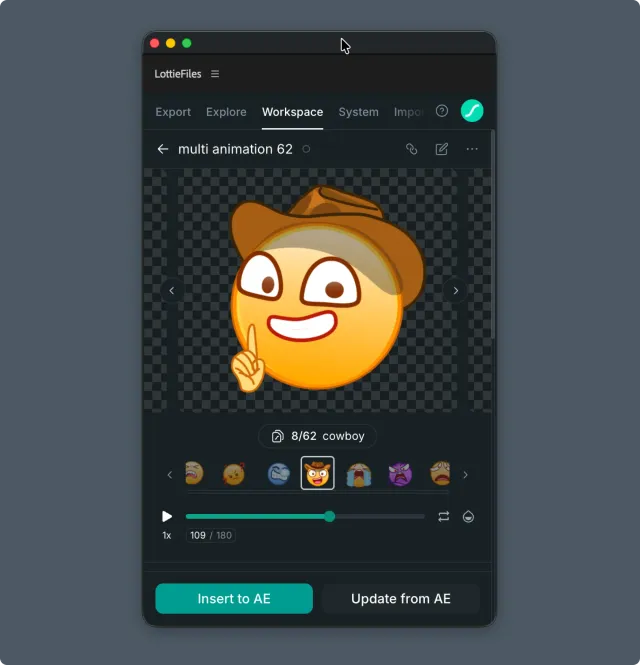
When you drop or paste a multi-animation .lottie into the Import tab, the plugin detects it and switches the preview into a carousel mode instead of a single-player preview.
You'll see:
One active animation playing in the larger preview area above.
A counter pill with the current animation number and name.
A row of animation thumbnails representing each animation in the bundle.
Controls to scroll through and select among them.
Selecting and inserting
Click a thumbnail in the carousel to switch the preview to that animation.
When the preview matches what you want, click Insert.
The plugin inserts only the selected animation as a new layer in your composition.
To insert multiple animations from the same .lottie:
Insert the first.
Without leaving the Import tab, select the next thumbnail and insert again.
Each insert places a new layer.
When state machines or themes are present
If the multi-animation .lottie includes state machines or themes (advanced dotLottie features), the plugin surfaces additional information in the preview area:
State machines — listed but typically not driven inside the AE plugin preview. The state machine activates in the destination runtime.
Themes — the plugin may let you switch theme variants during preview.
These features require a dotLottie-capable runtime in your destination — see Render → choosing format for runtime considerations.
Tips for motion/product designers
Multi-animation
.lottieis your friend for design systems. Bundle related icons or states into one file; teammates get the whole set with one import.Confirm the destination runtime supports multi-animation before shipping. Plain
lottie-webreads only the first animation in a.lottie; full multi-animation support requiresdotlottie-webor equivalent.
Name the animations clearly inside the
.lottie. The carousel labels animations by their internal name. Generic names like "Animation 1" make picking harder for teammates.
Troubleshooting
Carousel doesn't appear for a
.lottieI expect to be multi-animation — open the.lottiein LottieFiles Creator or another inspector to confirm it actually contains multiple animations. Some bundles claim multi but only ship one.Selected animation doesn't insert what I previewed — refresh the preview by re-selecting the thumbnail before inserting.
Related
Importing from file — single-file import basics.
Render → choosing format — when to ship
.lottievs.json.Feature checker — see exactly what features a multi-animation file uses.