Installation
Open the LottieFiles plugin from a Framer project and connect your account.
Framer plugins do not require a separate installation. Open LottieFiles directly in a project, or start from its Marketplace page and choose the project where it should run.
Open LottieFiles inside Framer
Open the Framer project you want to edit.
Open Plugins from the project toolbar or Quick Actions.
Search for LottieFiles.
Select the LottieFiles plugin.
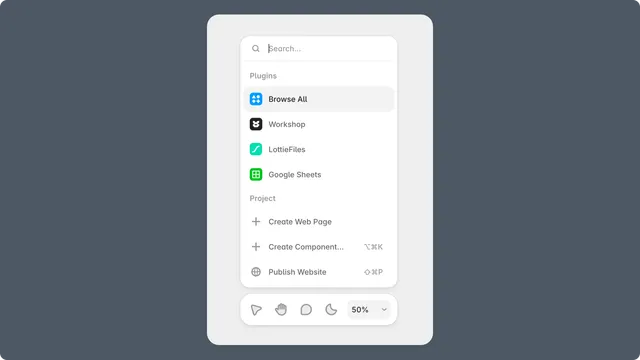
You can also open LottieFiles from the Framer Marketplace and select Open Plugin. Framer documents both entry points in Using plugins.
Connect a LottieFiles account
Explore can provide a limited guest workflow. Sign in when you need to:
Browse private and team Workspace assets.
Use Premium animations available to your plan.
Save a prepared animation to Workspace.
Access plan-dependent features or continue after the guest insertion limit.
Complete authentication in the browser, return to the original Framer project, and reopen the plugin if the account state does not refresh.
Troubleshooting
LottieFiles does not appear in search - confirm you opened the Plugins menu in an editable project rather than the public site preview.
The Marketplace opens the wrong project - close the plugin, return to the intended project, and open it again from Plugins.
Sign-in finishes but Workspace stays unavailable - return to the same Framer tab and reopen the plugin.