Import panel controls
A reference for every control in the Import tab.
How to access this
Open the LottieFiles plugin in After Effects.
Click Import in the top tab bar.
Dropzone
The empty Import tab gives you two entry points: paste SVG or Lottie JSON into the input field, or drag a local file into the dashed dropzone.
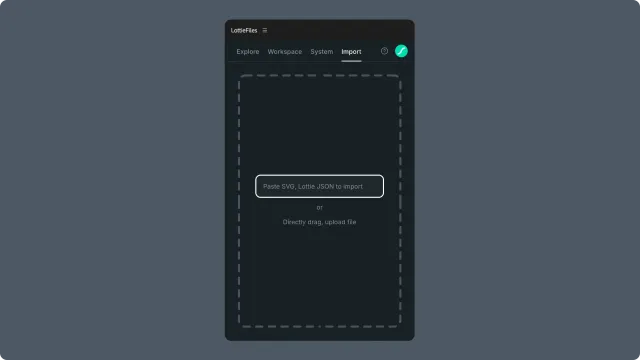
Paste input — paste SVG or Lottie JSON directly into the field.
Drag target — drop a
.lottie,.json,.svg, or.zipfile here.Click to open file picker — clicking the dropzone area opens the system file picker.
Format hint — text in the dropzone lists supported extensions.
Accepts: .svg, .json, .lottie, .zip (also application/json MIME type).
Paste listener (global, within Import tab)
Pasting a Lottie URL anywhere within the Import tab triggers the URL-import flow. No visible button — paste detection is automatic via a clipboard listener. See Importing from URL for accepted URL formats.
Player preview
After a file is loaded.
Player — plays the imported animation; loops by default.
Background color — selectable backdrop colors to inspect the animation against different surfaces.
File metadata — name, dimensions, duration shown below the player.
Zoom controls — hover the preview to reveal minus and plus buttons. Zoom ranges from 10% to 300% in 10% steps.
Pan when zoomed — above 100%, drag the preview or use a two-finger trackpad gesture to move the enlarged animation. Movement is constrained to the preview boundaries, and preview clicks do not trigger playback or State Machine interactions. At 100% or below, the existing preview interactions remain available.
Resize handle — drag to change the preview height when the handle is available.
Multi-animation carousel (multi-animation files only)
Thumbnail row — one thumbnail per animation in the bundle.
Active selection — highlights the currently previewed animation.
Scroll arrows — when the bundle has more thumbnails than fit on screen.
Zoom and pan controls — each active animation preview uses the same hover zoom and above-100% pan controls as a single-animation file. Panning does not move the carousel.
See Working with multi-animation files for the workflow.
Footer
Insert — adds the previewed animation to the active After Effects composition.
Reset / clear — removes the loaded file and returns the dropzone state.
Sign-in banner
When you're signed out, a banner appears above the dropzone indicating that some features (saving to workspace, history) require sign-in. Importing itself works signed-out for public files.
Related
Importing from file — drag-drop / picker workflow.
Importing from URL — paste workflow.