Preparing comps for Lottie
A short checklist of After Effects composition choices that decide how cleanly your animation exports to Lottie. Spending five minutes on these before you render saves most of the back-and-forth in Troubleshooting.
How to access this
This is a workflow inside After Effects itself, before you reach the LottieFiles plugin's Export tab.
Before you start
Your composition is open in After Effects.
You have a rough idea of which Lottie features your runtime supports — see Lottie compatibility if you're not sure.
Steps
1. Name layers semantically
Lottie carries layer names into the output JSON. Player libraries and interactivity tools (such as LottieFiles' state machines and motion tokens) often target layers by name, so cryptic names like Layer 47 or Shape Layer 12 copy 3 make downstream work painful.
Use lowercase, hyphen-separated names:
button-bg,icon-arrow,loading-dots.Group related layers under a common prefix:
cta-bg,cta-label,cta-icon.Avoid spaces, slashes, and non-ASCII characters unless your runtime explicitly supports them.
2. Prefer shape layers over raster
Vector shape layers convert cleanly to Lottie and stay small. Raster (image) layers ship as embedded PNGs inside the Lottie file — that's the single biggest contributor to bloated file sizes.
Trace logos and icons as shape layers; don't paste pre-rendered PNG versions.
When you do need an image (photo, complex texture), keep it small and consider using a placeholder layer that the runtime swaps in.
Adjustment layers, gradient fills, and many AE effects are not vector-friendly when exported — see Lottie compatibility.
3. Pre-compose for reusable groups, not for organization
Pre-comps in Lottie become nested compositions, which the runtime instantiates separately. Use them when the group is genuinely reusable (a button that appears in three places, a repeating motion pattern). Avoid pre-composing just to tidy the timeline — every layer of nesting costs runtime work.
When you do pre-compose, make sure the pre-comp's name is meaningful — it becomes a referenceable nested comp in the Lottie JSON.
4. Avoid features that don't convert
A small set of After Effects features either drop silently or break the export. Check your comp against the Lottie compatibility matrix before rendering. The most common offenders:
Expressions — not supported. Bake to keyframes (
Animation > Keyframe Assistant > Convert Expression to Keyframes) before exporting.Adjustment layers — not exported.
Camera and Light layers — not exported. Use simulated 2D camera moves instead.
3D rotation — partial support; Z-axis position usually works, full 3D rotation often doesn't.
Most AE effects — only a handful round-trip; the rest are dropped.
5. Trim work areas and unused keyframes
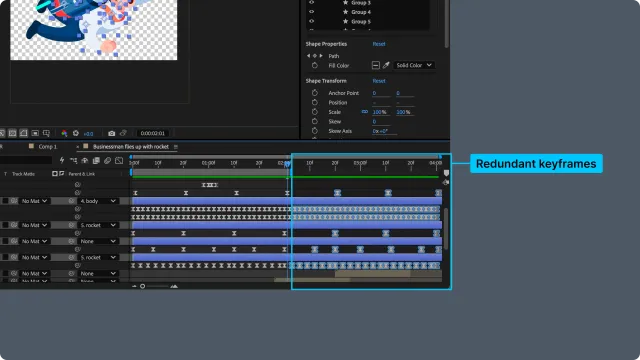
The exporter respects the work area, so set it to the actual range you want exported. Trim any unused keyframes before the work area starts and after it ends — they bloat the JSON without affecting playback.
A practical pattern: set work area first, then run Edit > Purge > All Memory & Disk Cache so the preview matches the export.
6. Choose the right frame rate
Lottie playback runs at whatever frame rate you author at. Higher frame rates give smoother motion but larger files and more runtime work. Common ranges:
24 fps — film-style motion; smallest files.
30 fps — the default for most web and mobile use.
60 fps — smoother but ~2× file size. Reserve for short, motion-heavy animations.
Set this in Composition > Composition Settings > Frame Rate.
Keeping file size down
A few composition choices drive most of a Lottie's weight. When file size matters for your target — a web page, an app bundle — control these:
Raster images are the biggest cost. Every image layer ships as an embedded PNG inside the Lottie. Trace logos and icons as shape layers (step 2 above); reserve raster for genuine photos and keep them small.
Frame rate scales size almost linearly. 60 fps is roughly twice the size of 30 fps (step 6) — author at the lowest rate that still looks right.
Trim the work area. Keyframes and frames outside the exported range still bloat the JSON (step 5).
Limit heavy modifiers and nesting. Large repeaters, many masks, and deep pre-comp nesting all add weight — see Lottie compatibility.
Ship the optimized variant. After export, the Optimized
.lottiedownload is typically 30–60% smaller with identical playback — see Download.
The first four shrink the animation itself; optimization compresses whatever you exported. Use both.
Verifying the result
Before rendering, do a quick sanity check:
The layer panel is tidy — no
Shape Layer 7 copy 4-style names.Raster layers are deliberate and few.
Pre-comps are reusable groups, not organizational folders.
Work area matches the intended export range.
A keyboard scrub of the work area looks right.
If all five check out, head to Exporting compositions as Lottie.
Related
Lottie compatibility — the canonical AE-feature → Lottie support matrix.
Exporting compositions as Lottie — the end-to-end render flow once your comp is ready.