Framer
Find, prepare, and publish Lottie animations on Framer sites with the LottieFiles plugin.
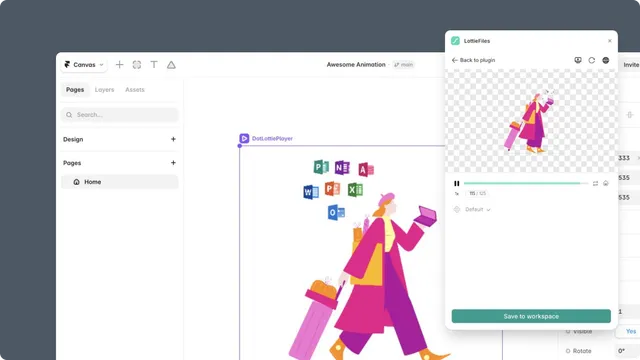
The LottieFiles plugin for Framer brings public animations and your team's private LottieFiles Workspace into the Framer canvas. Find an animation, inspect and prepare it, insert a ready-to-publish player component, and verify the result on the live site.
The core workflow
Find an animation in Explore or choose the approved version from Workspace.
Prepare its background, palette, renderer, theme, child animation, or state machine when needed.
Insert the animation as a Framer code component on the canvas.
Preview responsive behavior and interactions in Framer.
Publish the site and verify the animation on its public URL.
Choose a source
Explore is the public LottieFiles library. Use it to discover free or Premium motion for a new need.
Workspace contains private and team assets organized into workspaces, projects, and folders. Use it for approved production assets.
A local file should be uploaded to Workspace first. This preserves one reviewable source before the animation enters Framer.
What the plugin adds
When you insert an animation, the plugin adds a LottieFiles player code component to the Framer canvas. The component carries the animation source and supported playback, theme, and state-machine settings into Framer's preview and published site.
An inserted component is not a live mirror of its Workspace file. When the source changes, review the new version, replace or reinsert the component, and publish the site again.
Start here
Quickstart - open the plugin and publish a free animation on a Framer site.
Workspace - use private or team-approved animation assets.
Insert and publish - understand the component, preview it, and verify the live result.