Quickstart
Find a Lottie animation, preview or recolor it, and add it to a Canva design.
This quickstart takes the shortest path through the LottieFiles app: find a public animation in Explore and add it to the current Canva design.
Before you start
Open a Canva design.
Open Apps in the Canva side panel.
Search for and open LottieFiles. See Installation if it is not available yet.
1. Find an animation
Open Explore and search for the job the animation should perform. Terms such as loading, success, upload, or empty state are often more useful than a visual description alone.
Select an animation to open its preview.
2. Inspect the preview
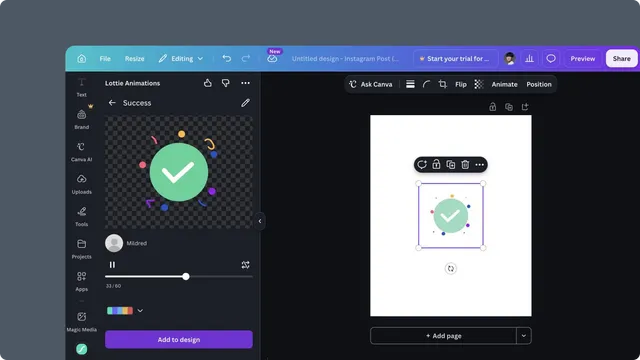
Play the animation and scrub through it before adding it. Check that its timing, visual weight, and background work with the Canva design.
If the animation contains editable colors, open the palette controls and choose a preset palette or create a custom one. See Recoloring an animation for the complete workflow.
3. Add it to the design
Click Add to design. The animation is inserted into the current Canva design.
Resize and position the inserted element with Canva's canvas controls, then play the design to verify the result.
If Canva offers GIF instead
Some animations cannot be inserted directly because of their duration, dimensions, file size, or unsupported features. Choose an available GIF size to complete the insertion, or select another animation. See Compatibility and GIF fallback.
Next steps
Use an approved team file from Workspace assets.
Turn static artwork into motion by animating an SVG.
Choose a child animation from a multi-animation dotLottie.
Continue with advanced changes in Lottie Creator.