Working with multi-animation files
Choose one child animation from a multi-animation dotLottie file before inserting it into Framer.
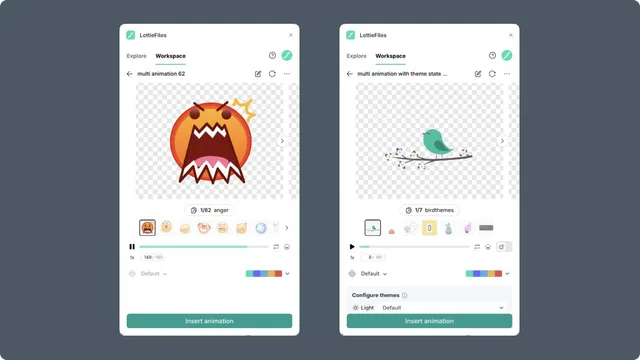
A dotLottie file can contain several related animations. The plugin shows them as a carousel so you can preview and select the child that belongs on the current page.
Choose the child animation
Open the multi-animation file from Explore or Workspace.
Wait for the child animation list to load.
Move through the carousel and compare the names, IDs, and previews.
Select the child animation to insert.
Apply a theme or state machine only if it belongs to that child.
What Framer receives
At insertion time, the plugin extracts the selected child into a single-animation dotLottie file and uploads that result for the Framer component. This keeps the inserted component focused and avoids publishing unused child animations.
If state-machine mode is active, the plugin keeps the selected state machine that belongs with the extracted animation. Other state machines can be omitted because they may reference child animations that are no longer in the inserted file.
Verify the result
After insertion, confirm that the expected child animation loads first and that its theme or state machine still works in Framer Preview. Do not assume the plugin carousel state and the published component are identical until both are tested.