Inserting into Framer
Insert the prepared animation as a LottieFiles player component on the Framer canvas.
The plugin adds a reusable player code component rather than flattening the animation into a video or GIF.
Choose where it should go
Select a Frame to insert and center the component inside that container.
Select a child element when its parent Frame is the intended container.
Leave the canvas without a suitable selection to insert at the canvas root.
Insert the animation
Open the prepared Explore or Workspace preview.
Confirm the active child animation, theme, state machine, background, and renderer.
Select Insert animation.
Wait for the new component to become selected.
Resize and position it with Framer's canvas controls.
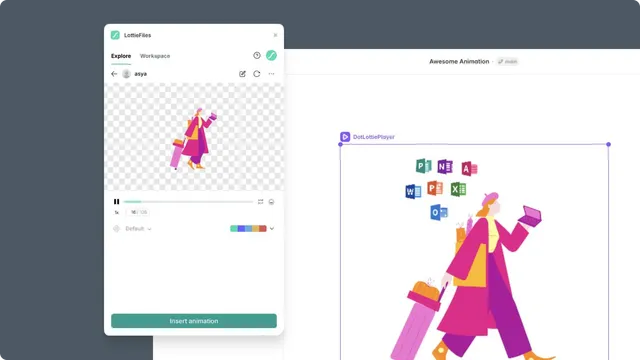
Large animations are scaled down proportionally at insertion so the initial component remains manageable. Resize the component for the actual layout rather than treating the inserted dimensions as production defaults.
After insertion
Open Framer Preview before continuing. A component can look correct as a static canvas object while its loop, theme, or state machine behaves differently in the running page.